The detail you need before a sales call is buried in a wall of notes

- The problem
- The same sales detail is buried in free-form notes and must be found again at every handoff.
- Revenue CRM feature
- Define a contact custom field and fill it from an existing contact’s edit form
- Where
- Settings → Data model → Custom fields → Contact → Add field; Contacts → Edit → Save
Before the call, you want to know which service the contact is considering. Their record contains the first phone conversation, notes from an event, and several internal comments. The answer may be there, but finding it means reading the history again.
Give a frequently needed answer a fixed place. Keep the conversation in notes, and put the detail used for the next decision in a field colleagues can find.
Notes become harder to use when readers have to reconstruct the answer
People often write in a notes field because there is nowhere else to put the information. The cost falls on the next person reading it.
During a handoff, an empty answer could mean it was never asked, never recorded, or simply buried in a paragraph. Colleagues ask the former owner, and sometimes ask the customer the same question again.
You do not need to turn every sentence into a field. Start with the one detail the team repeatedly searches for before a call.
Add a contact field in Revenue CRM
Open Settings, find Data model, and choose Custom fields. Owners and admins can define new fields.
For this example, use “Service of interest” as information about the individual contact. If the information belongs to a business or a specific opportunity, choose Company or Deal instead. Decide where the answer belongs before creating it.
- Select Contact, then Add field.
- Enter “Service of interest” as the Label.
- Enter
service_interestas the Field ID (alphanumeric). This is an example ID, not a required system value. Check it explicitly; a Japanese or Chinese label does not automatically produce an ID. - Choose Text for this first field, then select Add.
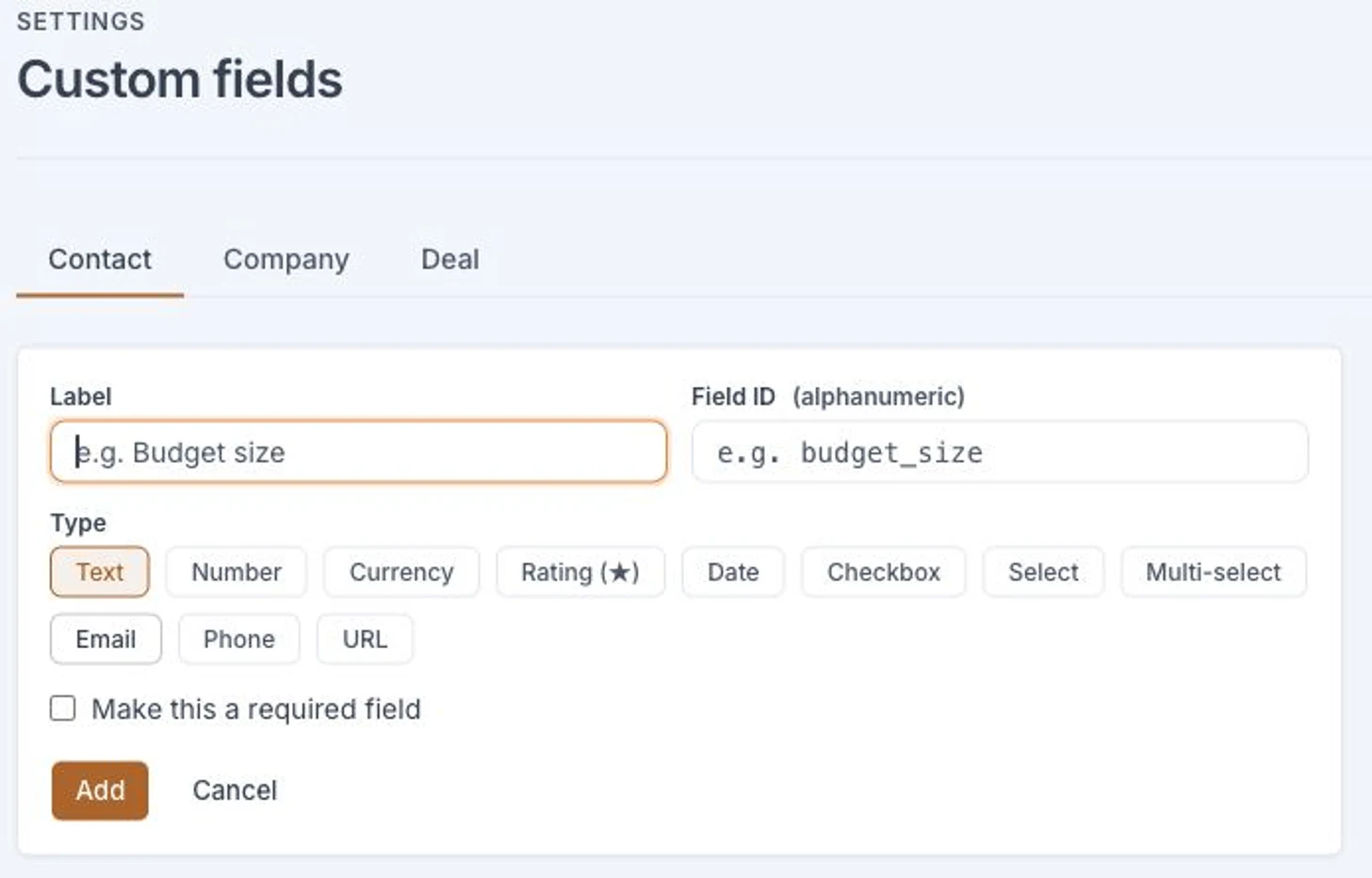 The screenshot shows the empty form. No field was created or saved during capture.
Other types include Date, Number, Select, and Multi-select. Select suits one answer from a fixed list; Multi-select allows several. For those two types, enter the choices one per line. Start with a question people can answer consistently.
Fill the field on a contact you already have
Open an existing contact and choose Edit. The form’s Custom fields section includes the newly defined field. Enter the known answer and select Save. You do not need to create the contact again.
Check the value in Custom fields on the detail page afterward. Entering a value requires permission to edit that contact, which is separate from permission to define fields for the workspace.
The system does not extract the answer from historical notes simply because you added a field. Read the relevant notes and transfer the confirmed information. Leave an unknown answer unresolved rather than filling it with a guess.
A contact field also does not copy itself to a company or deal. Creating the same field everywhere can create a new question: which copy should the team update? Agree on one home for the information.
Start with the next call
Choose one detail that kept slowing down this week’s preparation. Create its field and fill it for the next contact you will call. Once the team knows where to look, extend the practice to other contacts. Let actual use determine whether another field is needed.
Try the Revenue CRM demo, choose B2B sales, and inspect the custom field settings.
The demo opens with just an email address.
Read next
 The work of setting up Every inquiry arrives as free text. Someone has to classify it again. The request type is buried in a message, so staff classify every inquiry after it arrives. Dropdown and radio choices on forms
 The work of setting up The interface is in English. Why does “today” still follow Japan time? An overseas team changes the interface language but still has to reinterpret dates because the company time zone is wrong for its operating setup Country, tax & time zone: company date settings separate from the interface language