Bookings are taken by hand
Lesson bookings go back and forth on LINE, and each one is taken by hand.

 Revenue CRM School Edition
Open the home screen and today's work is already there. Students keep talking to you on your official LINE account. Homework and bookings arrive on LINE, and homework is saved to each student's record automatically.

Everything a team-run school manages, in one place.
Bookings, homework, lesson records, and tuition on one screen. Every teacher sees the same picture, and the home screen tells you what to do today: today's lessons, students to contact, and homework waiting for review.
The screens are built for the phone first. What mattered was a teacher opening it between the classroom and the train, recording what just happened, and checking who is next, right there.
The same foundation works for any business built on recurring payments, subscriptions and repeat orders included. Take the student, lesson, and teacher parts out and it watches contracts and retention instead. Ask us.
Read about this approach →Sound familiar?
Lesson bookings go back and forth on LINE, and each one is taken by hand.
Whether a teacher has checked the homework is tracked by who has read what in the LINE group.
You tried school management software, but nobody kept up with the data entry and it never took hold.

Why we built the school edition.
Give society more choices.
For 8 years we have built customer management systems, helping more than 40 companies put them in place. What we saw again and again was a tool going unused because entering data was too much work. Not more features, but a system that keeps running without people straining to enter data. That is why we built it.
The school edition grew out of how a friend runs an English school. Raising a child while teaching about 40 students, the owner was so buried in admin that new enrollment had been put on hold. Since starting to use it, the school has been able to take new students again.
Let the CRM take on the admin work, and give the school a 48-hour day.
What it does
Students hand in homework on the LINE app they already use, no new app to install, and book lessons from the LINE menu. Bookings go onto Google Calendar, and each submission is logged per student (text can be read in the CRM; photos and audio stay in LINE). The CRM can also nudge students who have not handed in their homework.
Enrolled, on hold, and withdrawn students in one list. The CRM flags unpaid tuition, and the reminder goes out on LINE.
The monthly report is drafted from each student's lesson records. Teachers review it before using it.
The screens
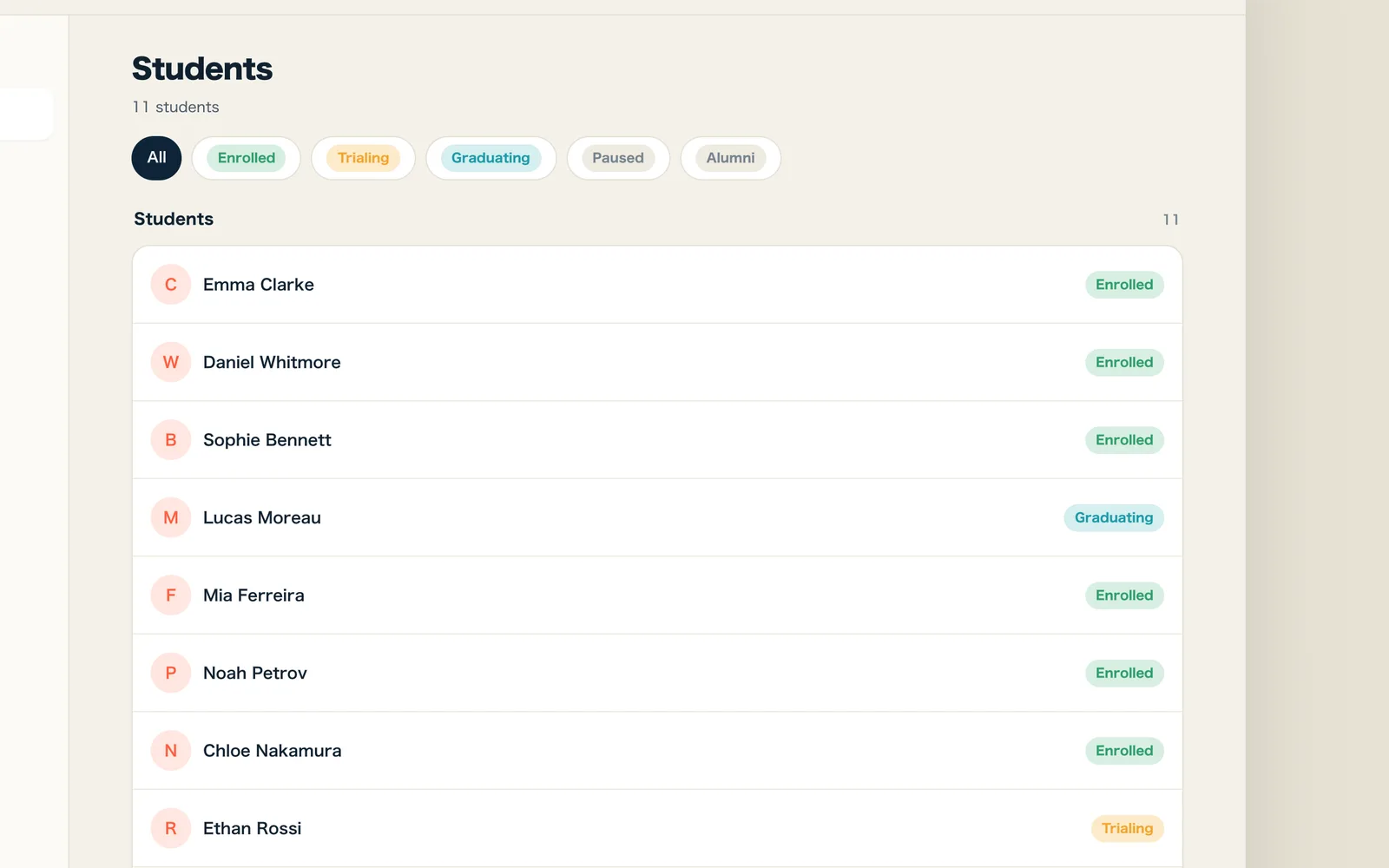
Trial, enrolled, on hold, graduated, withdrawn. Where each student stands, at a glance.

Lessons managed by the week, tied to the closure-day calendar. Connect a Google account and each teacher gets the lessons on their own Google Calendar.
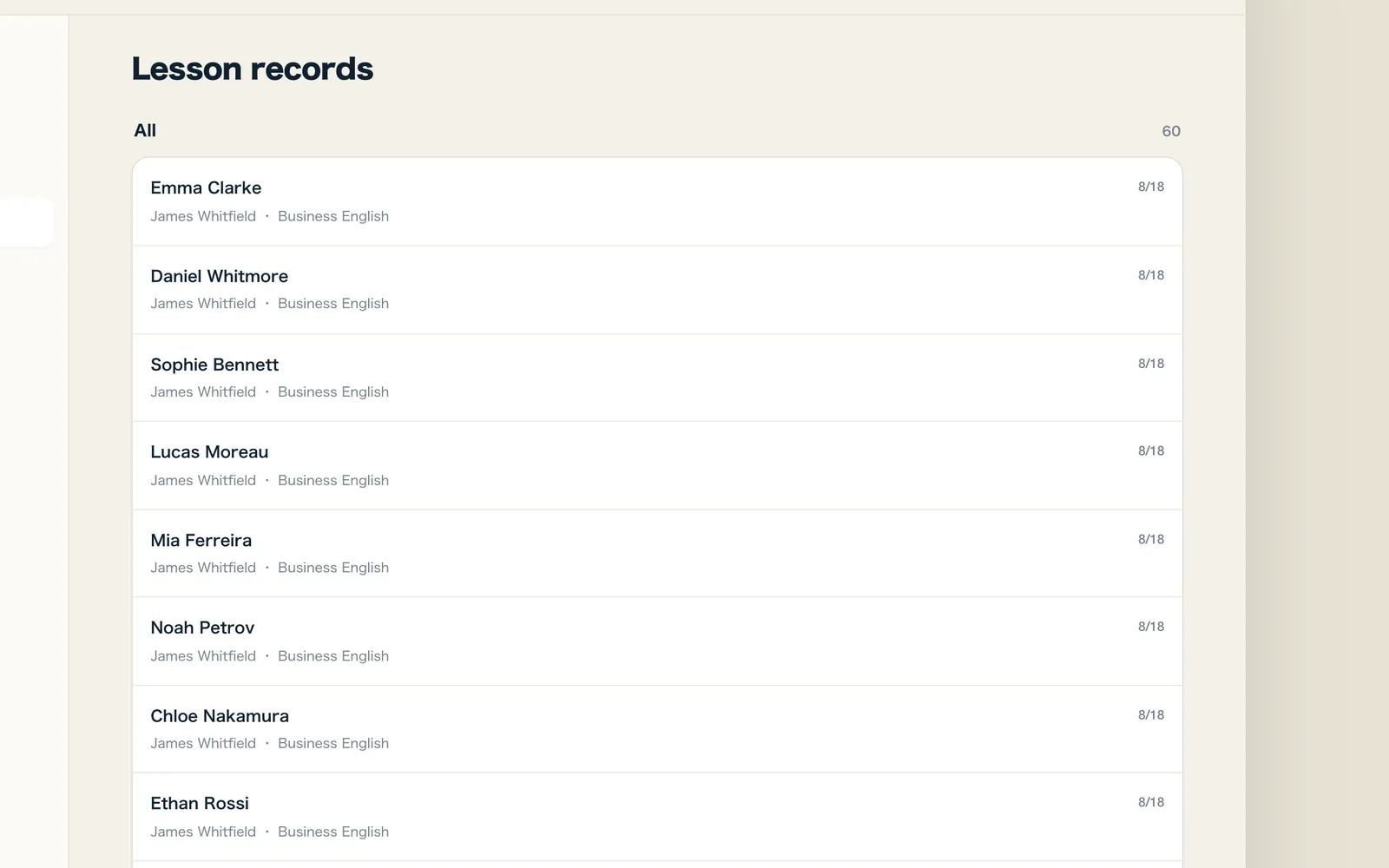
What was taught, kept per student. The history survives a change of teacher.

Paste the trial transcript and AI sorts it into the student record. A teacher can correct it afterwards.

AI drafts it from the student’s lesson records. A teacher checks it before using it.
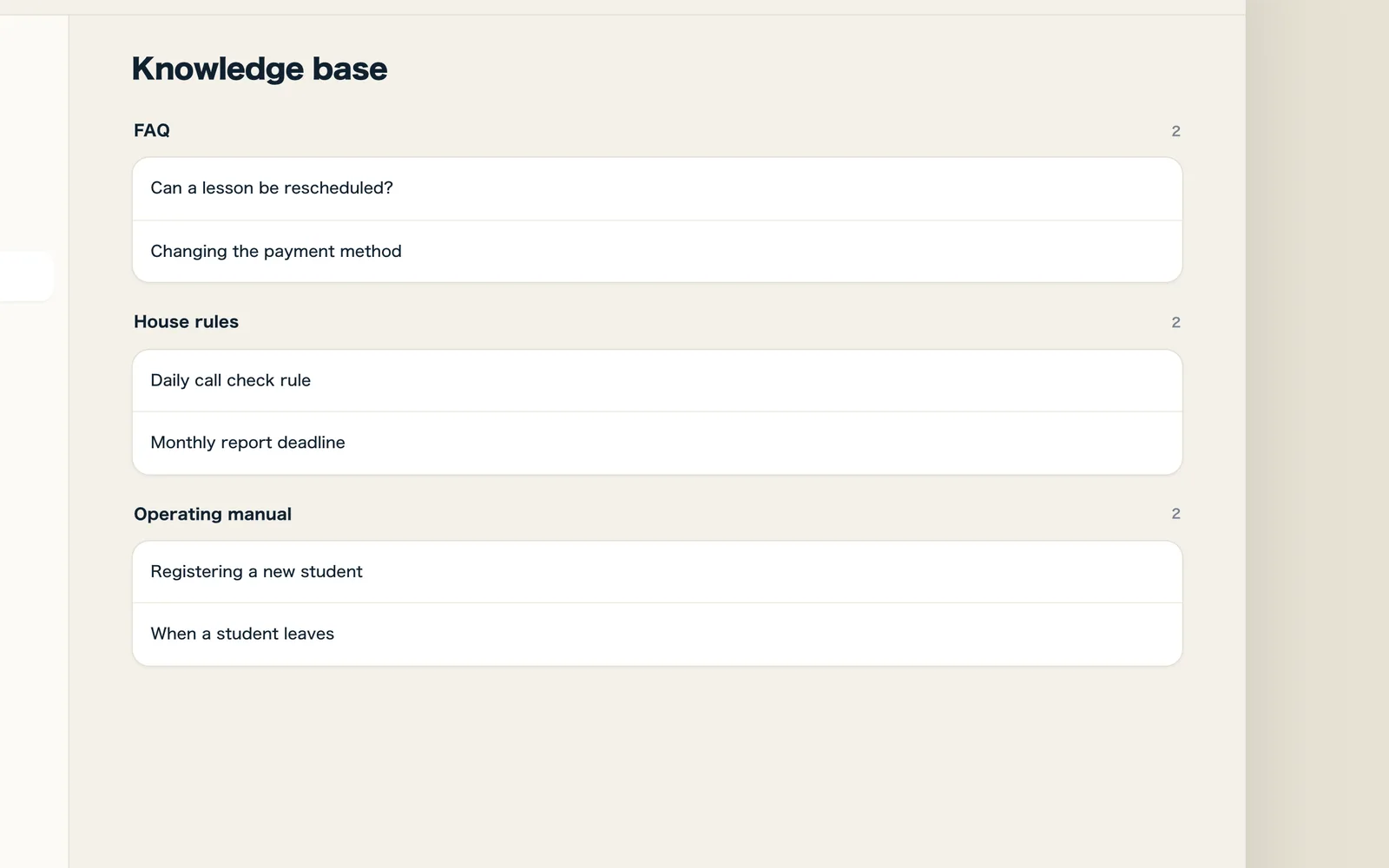
Teacher manuals and operating rules synced from Google Drive, so teachers can look them up fast. The AI cites them when it answers.

Paying and failed payments in one place. Unpaid tuition is flagged, and you can send the reminder on LINE.
Running the school
The month-end report, who has not been contacted, and this week's schedule all run straight off the student data. The point is not to produce a document. It is to leave something the next person can act on.
The monthly progress report is drafted by AI from each student's lesson records. A teacher checks it and decides whether it is ready to use.
AI
You do not have to build a report to find something out. Ask it the way you would say it, and it searches the student data and answers.
Paste a trial-lesson transcript and it sorts what was said into fields: how they found you, their level, what they are after, and what the trial exposed. The writing-up afterwards goes away.
Nothing AI writes is sent to a student or a guardian without a teacher seeing it first. For now, AI answers and drafts are in Japanese.
Permissions
Every teacher can see student information. The assigned teacher gets that student's tasks and homework, and nothing more. Who sees amounts such as tuition is set per role.
Actions are logged, so you can trace who changed what, and when.
30 days free
No setup fee, and every plan comes with a 30-day free trial, no card required. The demo opens with just an email address. How-to videos and help articles are free for everyone. If you want us to set it up and get it running for you, hands-on onboarding is available from ¥120,000. Refer another school and, for 12 months after it starts paying, 20% of its base plan fee (tax excluded) comes off your bill.