Customer data changed. Who should you ask about it?

- The problem
- A manager asks the whole team who changed a record before they can trust the current information.
- Revenue CRM feature
- Filter the audit log by record type and action to inspect recent changes
- Where
- Settings → Audit log / All records / All actions / Update
You open a customer record before a call and notice that something has changed. Was it the account owner, another colleague, or an automated process? The next step becomes a message to the whole team: “Does anyone know who updated this?”
You need enough context to use the current information and find the right person to ask. In the B2B edition of Revenue CRM, owners and admins can inspect recent changes in the Audit log.
Narrow the record type and action before asking the team
Open Settings → Audit log. Choose Contact, Company, or Deal in All records, then choose Update in All actions to focus on edits.
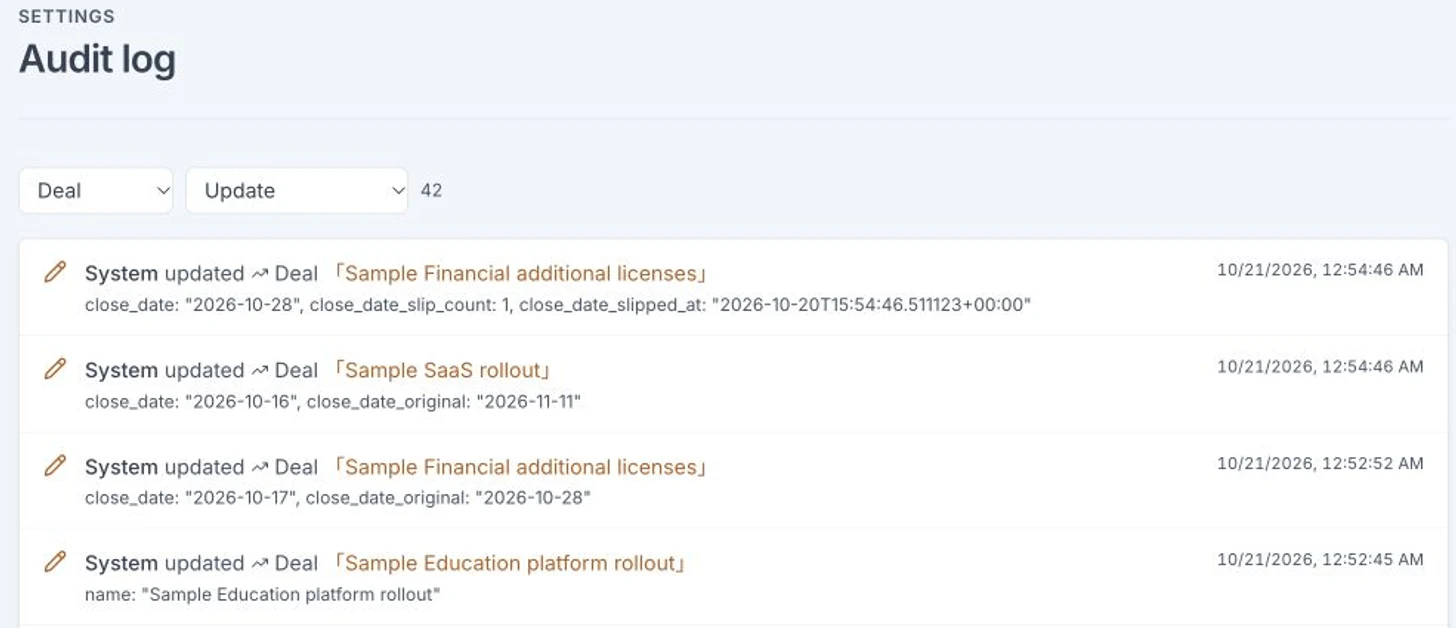 The English demo shows sample deal updates attributed to System. Only viewing and filtering were performed.
Each row identifies the actor, action, affected record, and time. For updates, the detail line also shows the fields that changed and their new values. Use the record name and timestamp together to find a likely match.
When a person’s name is available, you can ask that person about a specific record at a specific time. That makes the question easier to answer than a general request for anyone who remembers. Where the record name is a link, click it to open the current record.
The filters cover the latest 200 entries
The page loads the newest 200 entries, and filtering works within that set. Choosing Company does not search every company change in the workspace’s history.
A busy workspace can push an earlier edit outside this window. There is no name or date search, and no control to load older entries. A missing row does not establish that no change happened.
The detail line is also not a before-and-after comparison. It displays field names such as name with their new values. A deal’s stage appears as stage_id, an internal identifier, rather than a readable stage name. Do not interpret that identifier as a stage label. Long detail lines may be truncated on screen.
A System entry does not identify a colleague
Automated work and other updates without an identifiable actor can appear as System. The label does not tell you which person to question or why the value changed.
Use the log to establish what is visible, then compare it with the current record and ask about the remaining uncertainty. The log has no field for a change explanation and no button to restore a previous value. Viewing the audit log is itself recorded.
Activity history serves a different purpose. Calls and meetings explain the customer conversation; the audit log helps inspect recent data operations. An entry showing an update does not establish what the customer agreed to.
Start with one record
Ask an owner or admin to inspect one record that recently changed. Filter the record type and action, then read the name, timestamp, and actor together. If a matching entry exists, include those details when asking for context.
You now have a specific starting point. If there is no match, account for the 200-entry limit before drawing a conclusion.
To see the screen, open the demo, choose B2B Sales, and go to Settings → Audit log.
The demo opens with just an email address.
Read next
 The work of running it The quote is already in the system. Why retype it to make a PDF? A saved quote gets entered again in a separate template before it can be shared as a PDF Print / PDF: view saved quote details in a document layout and use the browser to save a PDF
 The work of running it The Monday sales meeting ends as a status readout, and nobody decides which deals to focus on this week The weekly sales meeting turns into each rep reading out last week's wins and losses. Nobody decides which deals deserve the team's effort this week, and when someone does, nobody checks the following week whether it worked Weekly review, "This week's plan" (opened from "Set this week's plan →" on the home screen. 1. Last week, 2. What changed and why (AI), 3. Deals to focus on (up to 3) and direction, 4. Next actions (AI drafts; approved ones become tasks), plus the result of last week's plan. Owners, admins and managers decide and approve)