Every inquiry arrives as free text. Someone has to classify it again.

- The problem
- The request type is buried in a message, so staff classify every inquiry after it arrives.
- Revenue CRM feature
- Dropdown and radio choices on forms
- Where
- Forms → Settings → Add field → Field type → Choices (one per line)
One person wants a brochure. Another needs a quote. An existing customer has a contract question. All three arrive in the same message field, and someone reads each one before adding a request category elsewhere.
You can ask for that category at the point of entry. Keep a separate message field for the details that a fixed list cannot capture.
A clearer request makes the first response easier
When the purpose is buried in a paragraph, the recipient has to interpret it before deciding what to do. A colleague picking up the inquiry may repeat the same work.
“Can you send pricing?” might mean a general price list or a proposal for a specific project. Letting people choose a request type gives the team a starting point, while their message supplies the context. The aim is fewer clarifying questions, rather than a longer form.
Add one choice field in Revenue CRM
In a form’s Settings, you can add a Dropdown or Radio field. Both let the visitor select one of your predefined choices.
Open Forms. If it is missing from the sidebar, switch the workspace view to Marketing. Open the form you use, select Settings, and find Add field.
- Enter a Label, such as “What can we help with?”, and a Key (alphanumeric), such as
inquiry_type. These are example names, not required system values. - Set Field type to Dropdown or Radio.
- In Choices (one per line), enter “Product information”, “Request a quote”, “Existing customer support”, and “Other” on separate lines.
- Select Required if everyone should answer, then choose Add field.
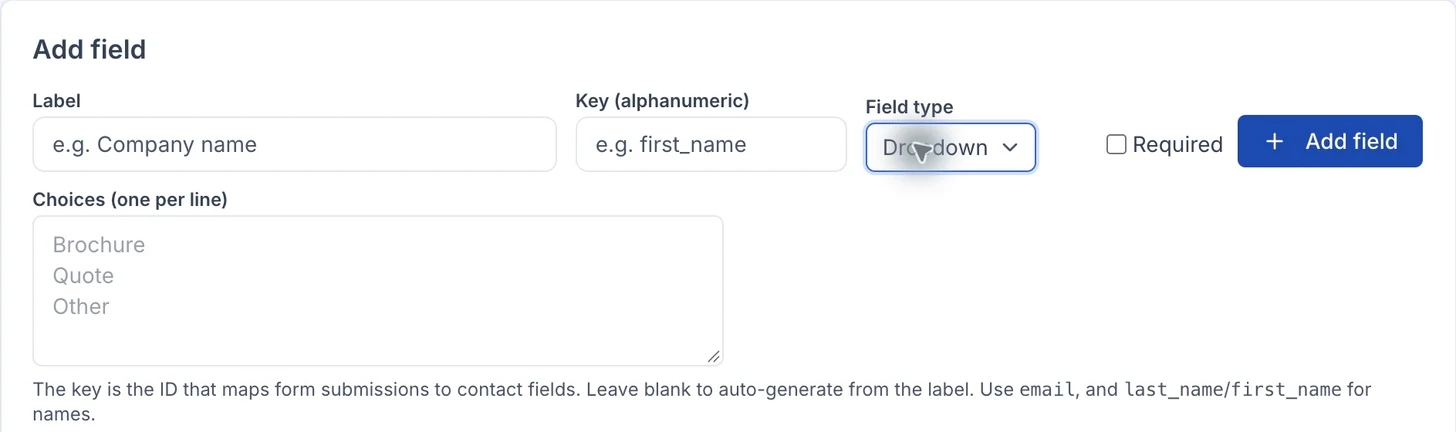 The faint text is placeholder guidance. The screenshot shows the field type without adding or saving a field.
A dropdown reveals its options when opened. Radio buttons keep them visible for comparison. Radio can suit a short list that visitors should see at a glance. Neither field is a multiple-choice checklist.
Keep “Other” as a way in for requests you did not anticipate. The existing message field still matters: choosing “Request a quote” does not describe the scope of the work.
Check the public form before relying on it
For an existing dropdown or radio field, click its displayed choices in the field list to edit them. Put each choice on its own line and select Save. Blank lines and duplicate choices are removed.
A choice field without any options is hidden on the public page. Marking it required does not make it appear. Open the Public URL from the settings and check that the intended options are visible and easy to understand.
This change does not automatically route the inquiry to an owner or classify historical free-text answers. Start with a simple agreement: the person handling intake uses the selected request type to decide on the next response.
Start with the decisions you actually make
List your three most common request types, add “Other”, and create one field. Check the public form, then agree with the intake team on what to send for each type. Add finer distinctions only when incoming answers show they are needed.
Try the Revenue CRM demo, choose B2B sales, and inspect the form settings.
The demo opens with just an email address.
Read next
 The work of setting up The detail you need before a sales call is buried in a wall of notes The same sales detail is buried in free-form notes and must be found again at every handoff. Define a contact custom field and fill it from an existing contact’s edit form
 The work of setting up The interface is in English. Why does “today” still follow Japan time? An overseas team changes the interface language but still has to reinterpret dates because the company time zone is wrong for its operating setup Country, tax & time zone: company date settings separate from the interface language