Teachers only notice new homework after opening the system

- The problem
- Teachers repeatedly open the system to find out whether their students have submitted homework.
- Revenue CRM feature
- Link a teacher’s LINE account to receive alerts for relevant homework submissions
- Where
- Users → User management → LINE alerts / LINE ✓ Alerts: my students
The teacher responsible for checking homework is clear. Yet they still open the system between lessons to see whether anything has arrived. If the school owner notices first, the owner sends another message: “There is new homework for you.”
Assignment and notification solve different problems. A LINE alert can help the teacher notice incoming work without repeatedly checking an empty screen.
An arrival alert gives the teacher a starting point
When the owner relays every arrival, the teacher’s awareness depends on the owner being available. When teachers check repeatedly themselves, those checks interrupt preparation even when there is nothing new.
An alert does not review the homework. Agree on the next step too: open the submission, inspect it, and record that it was checked.
Link the teacher’s LINE account in Revenue CRM
In the school edition, open Users to reach User management. An unlinked member has a LINE alerts control. A Manager or another account authorized to manage notification settings performs this setup.
The school’s LINE Official Account must already be connected. Having a personal LINE account alone does not make the teacher a notification recipient.
- The authorized administrator selects LINE alerts on the correct teacher’s row to issue a linking code.
- Give that code only to the named teacher. They add the school’s official account as a friend and send the code in its chat.
- Check that the row now shows LINE ✓ Alerts: my students.
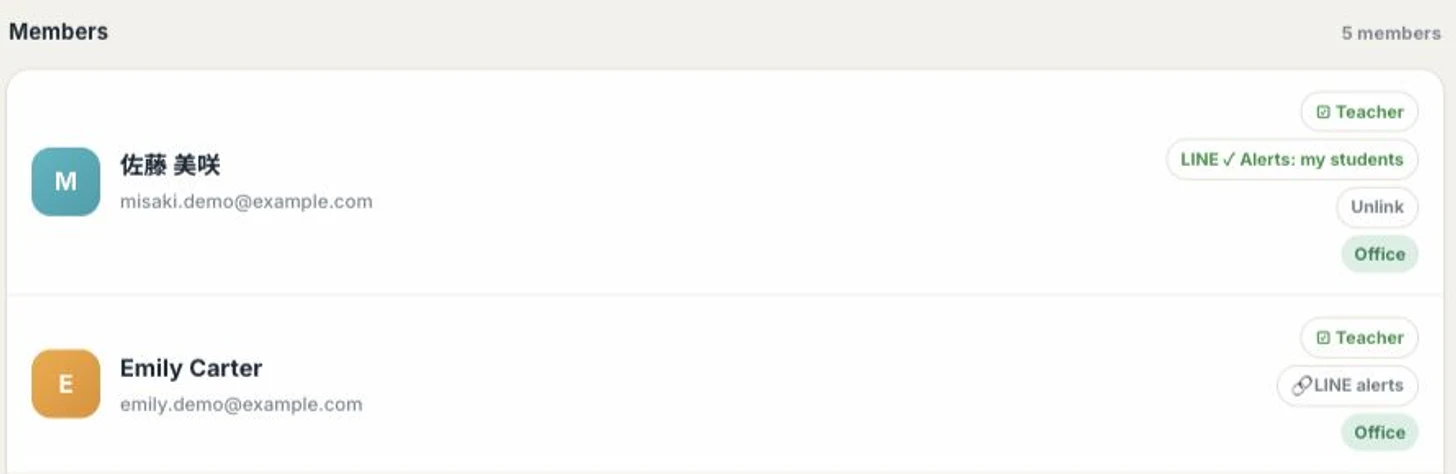 Names and email addresses are demo samples. No linking code was issued and no notification setting was changed during capture.
Linking initially enables alerts for the teacher’s relevant submissions. For a typed submission, the normal recipient is assigned both to the student and to that lesson type. If the student has no assigned teachers, the system falls back to the lesson type’s teachers. An unclassified submission goes to the student’s assigned teachers because it cannot be filtered by type.
If an expected alert does not arrive, check both the student’s assigned teachers and Teachers by lesson type in Lessons, as well as the LINE link.
Choose the notification scope deliberately
The notification button cycles through the modes on each click and saves immediately: relevant students, all submissions, nightly summary, and off. Do not click it just to inspect the options.
All-submission mode suits an intake or office role that needs school-wide arrivals, including work outside its own assignments. Nightly mode sends the evening action summary rather than individual arrival alerts. All-submission mode also receives that summary. Start one teacher with their relevant submissions.
Several arrivals close together are held and combined to avoid repeated alerts. A submission arriving within 15 minutes of the previous alert is deferred until another sending opportunity, such as a subsequent relevant submission. It is not a promise of delivery exactly 15 minutes later.
Alerts use the official account’s LINE message allowance. When the system can retrieve the remaining allowance and finds 30 messages or fewer, it stops arrival alerts to preserve capacity for student communication. Connectivity or integration problems can also prevent delivery. Keep a scheduled check of the system as a fallback.
Start with one teacher
Link one teacher, then verify their student and lesson-type assignments. When genuine homework next arrives, compare the alert with the submission in the system. Receiving the alert does not mark the work reviewed; finish the check by using Mark as reviewed on the submission.
Try the Revenue CRM demo, choose Schools, and inspect the notification controls in User management.
The demo opens with just an email address.
Read next
 The work of setting up The LINE account is hooked up, but no homework and no new followers are reaching the school The school entered its LINE Official Account credentials and assumed it was done, but a setting on the LINE side was still off. Not one homework submission or new follower made it in, and nobody noticed for days LINE connection check (open More > Integrations and the system asks LINE directly, showing 受信中 (receiving), Webhook OFF, URLが違う (wrong URL), 未連携 (not connected) or 状態不明 (unknown), plus the LINE friend count and the number imported into the CRM. The status is shown to the Manager and Office roles)
 The work of setting up Your best teacher can't read the admin screens, so someone else types up every lesson Teachers who don't read the language of the admin screens hand over lesson notes on paper or in chat, and someone in the office retypes them. Records arrive late and thin, and the teacher can't open their own students' profiles The JA / EN switch at the top right of the screen (it changes the menus, buttons and profile labels in that person's browser only)