The quote is already in the system. Why retype it to make a PDF?

- The problem
- A saved quote gets entered again in a separate template before it can be shared as a PDF
- Revenue CRM feature
- Print / PDF: view saved quote details in a document layout and use the browser to save a PDF
- Where
- Quotes → quote details → Print / PDF → Print / save as PDF
The items and prices are already entered in your customer management system. To send the quote, someone opens a spreadsheet template and enters them again. A last-minute change to quantity now means checking two versions.
Revenue CRM’s B2B edition lets you open Print / PDF from a saved quote. The document uses the saved information, so preparing a PDF does not require typing the same line items into another template.
One change should not require two matching updates
The cost of a separate template is more than formatting time. It creates a second place where the quote’s amount and terms can diverge.
A unit price gets corrected in one version, while an old expiry date stays in the PDF. Even if the arithmetic is right, the team still has to establish which version reflects the agreed quote.
Keep the quote content in one place, then create the document from that record. That is the useful change in workflow.
Open Print / PDF from the saved quote
Select a quote in Quotes. Near its name and status, Print / PDF opens a print-friendly page in another tab.
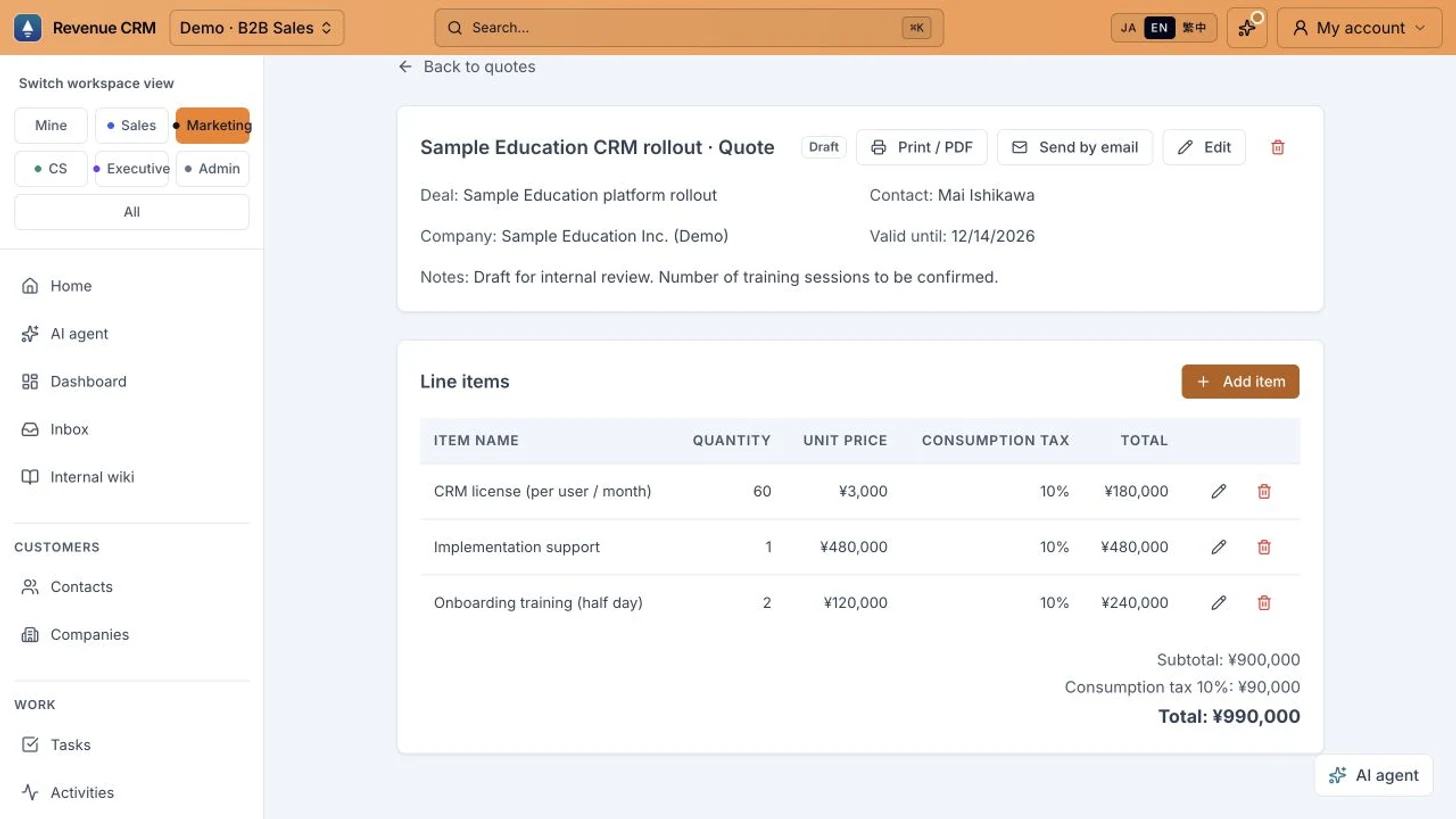 This is a demo quote. Names, items and amounts are sample data, not a real client quote or product pricing guidance.
The document shows the quote name, linked company and contact, issue date, validity date, line items, tax breakdown, total and notes. An unlinked recipient is not filled in for you. The issue date comes from the quote’s creation date, so do not assume it will be today.
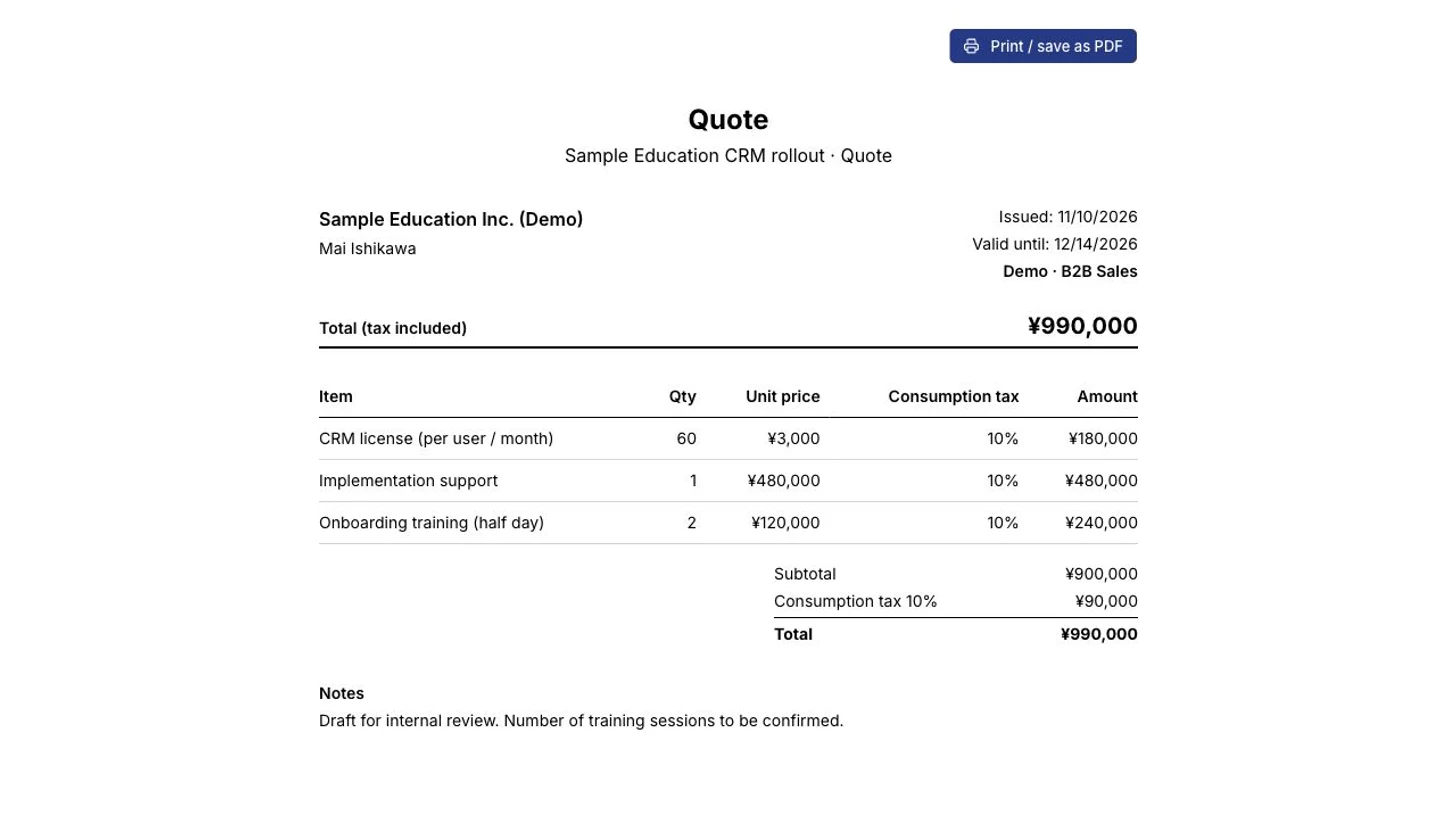 Check the recipient, dates, items, quantities, prices and total before sharing. No printing or sending was performed for this screenshot.
The normal application sidebar is absent, leaving a document layout. This is a predefined format, rather than an editor for designing an exact copy of your company’s existing template.
Save the PDF through your browser
Choose Print / save as PDF on the document page. In the browser’s print dialog, select its PDF-saving option and check margins and page breaks before saving to your device.
If the content needs changing, edit the original quote first. A PDF already saved on your device will not update when the record changes. Reopen the print-friendly page and save a fresh copy after a correction.
Saving a PDF is separate from sending it. This action does not send an email or mark the quote as sent. Send by email is a separate control on the quote detail page.
Start with a quote you already have
This week, open Print / PDF for one existing quote and check whether the document contains what your team needs. You can review the format without sending anything.
If it works for your process, remove the duplicate entry step from the next quote. Keeping the same amount out of a second template is a practical place to begin.
Choose the B2B edition in the Revenue CRM demo, then open a sample under Quotes to inspect the print-friendly page.
The demo opens with just an email address.
Read next
 The work of running it Customer data changed. Who should you ask about it? A manager asks the whole team who changed a record before they can trust the current information. Filter the audit log by record type and action to inspect recent changes
 The work of running it The Monday sales meeting ends as a status readout, and nobody decides which deals to focus on this week The weekly sales meeting turns into each rep reading out last week's wins and losses. Nobody decides which deals deserve the team's effort this week, and when someone does, nobody checks the following week whether it worked Weekly review, "This week's plan" (opened from "Set this week's plan →" on the home screen. 1. Last week, 2. What changed and why (AI), 3. Deals to focus on (up to 3) and direction, 4. Next actions (AI drafts; approved ones become tasks), plus the result of last week's plan. Owners, admins and managers decide and approve)