The Monday sales meeting ends as a status readout, and nobody decides which deals to focus on this week
- The problem
- The weekly sales meeting turns into each rep reading out last week's wins and losses. Nobody decides which deals deserve the team's effort this week, and when someone does, nobody checks the following week whether it worked
- Revenue CRM feature
- Weekly review, "This week's plan" (opened from "Set this week's plan →" on the home screen. 1. Last week, 2. What changed and why (AI), 3. Deals to focus on (up to 3) and direction, 4. Next actions (AI drafts; approved ones become tasks), plus the result of last week's plan. Owners, admins and managers decide and approve)
- Where
- Home: "Set this week's plan →" (after deciding: "See this week's plan and next actions →"); "This week's plan" page: "1. Last week" (Won, Lost, New deals, Close dates slipped, No next step, Activities, Open pipeline, Overdue tasks), "2. What changed and why (AI)" with "Ask the AI to analyze", "3. Deals to focus on (up to 3) and direction" with checkboxes and a one-line direction, "Set the plan", "4. Next actions" with "Draft next actions", "Approve as task", "Skip", and "Result of last week's plan (date)"; Settings > What the AI may do > Weekly report and analysis
Monday, 10 a.m. Pipeline meeting. Each rep reads out last week’s closed-won and closed-lost, the manager says “great, keep it up,” and an hour later the team walks out having decided nothing.
Sharing the numbers matters. But the real question for that hour is which deals deserve the team’s attention this week. When that never gets answered, every rep starts the week on their own judgment.
The cost isn’t the hour. It’s that nobody checks next week whether the plan worked
Say six reps meet for an hour every week. That’s roughly 24 person-hours a month, and the meeting still doesn’t produce a focus list. Annoying, but the hours aren’t the real loss. When the weekly meeting becomes a readout, two things happen.
First, the biggest deals drift into “someone must be on it.” Everyone assumes they’re covered, and nobody actually makes the next move.
Second, on the weeks someone does say “let’s push these three,” nobody looks at the result the following Monday. A plan that’s never reviewed teaches the team nothing. So the next meeting opens with the same readout.
In Revenue CRM, the “This week’s plan” page puts the numbers first, then asks you to pick up to three deals
On the home screen of the B2B edition there’s a card: “Set this week’s plan →”. The page it opens has four sections, and people only do the last two.
- Last week: won, lost, new deals, close dates slipped, no next step, activities, open pipeline, overdue tasks. Covers Monday through Sunday of the previous week
- What changed and why (AI): click “Ask the AI to analyze” for a short list of what moved and possible causes
- Deals to focus on (up to 3) and direction: up to 30 open deals, largest first, each with amount, stage and days in stage. Deals with no open task attached are marked “no next step.” Tick up to three, write one line of direction, and click “Set the plan”
- Next actions: “Draft next actions” has the AI propose one action per chosen deal. “Approve as task” turns it into a high-priority task with a due date, assigned to the deal owner (or to whoever approved it, if the deal has no owner). “Skip” drops it
Open the page the following week and a “Result of last week’s plan” line appears: how many focus deals changed stage, how many were won or lost, and how many approved tasks got done. The plan becomes next week’s review.
Five things to know before you rely on it:
- Only owners, admins and managers can set the plan, draft actions and approve them. Members can view
- Last week’s numbers are calculated the first time anyone opens the page that week. Reopening the page doesn’t recalculate them (asking for the AI analysis does). The analysis runs once a week
- Every click on the analysis or drafting buttons counts as one AI use toward your limit. After the first draft, the button becomes “Redraft the unapproved ones.” If you set “Weekly report and analysis” to “A person does it” under Settings > What the AI may do, no AI analysis appears. The “Ask the AI to analyze” button is still there, though, and clicking it still uses one AI run, so leave it alone
- Setting the plan again clears the earlier drafts and approvals from the page. Tasks already created stay, but they no longer count toward next week’s result
- The result only counts movement after the moment the plan was set
Your first step
Next Monday, before the meeting, have the manager open the page, tick three deals in section 3, and talk about only those three. If you’re unsure where to start, the large deals marked “no next step” are a fine default.
At the end of the meeting, click “Draft next actions,” read the drafts with each deal owner, and approve only the ones you both agree with. Then start the following Monday with the one-line result of last week’s plan.
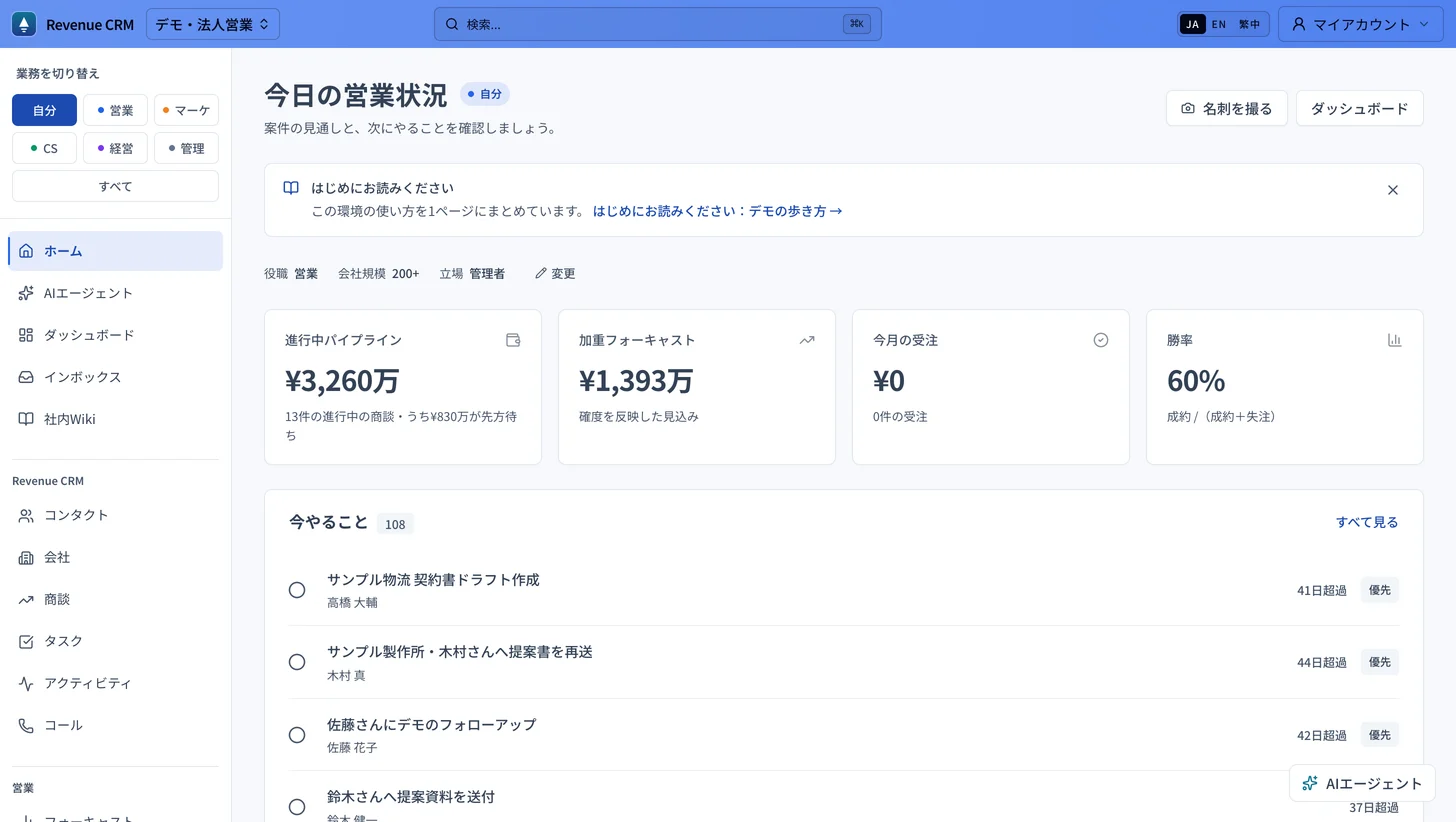 The B2B home screen. The “Set this week’s plan →” card appears between these four numbers and the to-do list; it isn’t in this capture. Approved next actions show up in the owner’s to-do list. The screenshot is in Japanese.
Try the demo with just an email address: choose “B2B” and open “Set this week’s plan →” on the home screen to see last week’s numbers and the focus candidates. The demo is shared, so look around without setting a plan.
The demo opens with just an email address.
Read next
 The work of running it Customer data changed. Who should you ask about it? A manager asks the whole team who changed a record before they can trust the current information. Filter the audit log by record type and action to inspect recent changes
 The work of running it The quote is already in the system. Why retype it to make a PDF? A saved quote gets entered again in a separate template before it can be shared as a PDF Print / PDF: view saved quote details in a document layout and use the browser to save a PDF