Your best teacher can't read the admin screens, so someone else types up every lesson

- The problem
- Teachers who don't read the language of the admin screens hand over lesson notes on paper or in chat, and someone in the office retypes them. Records arrive late and thin, and the teacher can't open their own students' profiles
- Revenue CRM feature
- The JA / EN switch at the top right of the screen (it changes the menus, buttons and profile labels in that person's browser only)
- Where
- JA / EN at the top right. On the student profile: + Log lesson, 📅 Book next lesson, 💬 Send on LINE, 📄 Progress report. Homework inbox: Mark as reviewed. More: Calendar, Profile field names
It’s 9 p.m. at a language school in Japan. After the last lesson, your English teacher leaves a handwritten note on the office desk and heads home. A great teacher. But the admin screens are in Japanese, so they never open them.
The next morning someone in the office deciphers the note and types it in. Nobody’s doing anything wrong. But when the screens are Japanese only, keeping the record stops being part of the teacher’s job.
What you lose is office time and fresh records
The retyping hurts, but the record itself is the bigger loss. Every extra pair of hands makes it later and shorter.
Say two teachers run 40 lessons a week and each note takes three minutes to type up. That’s two hours a week, about eight a month. Meanwhile the teachers can’t open their own students’ profiles, so they walk into class without knowing what the last teacher covered.
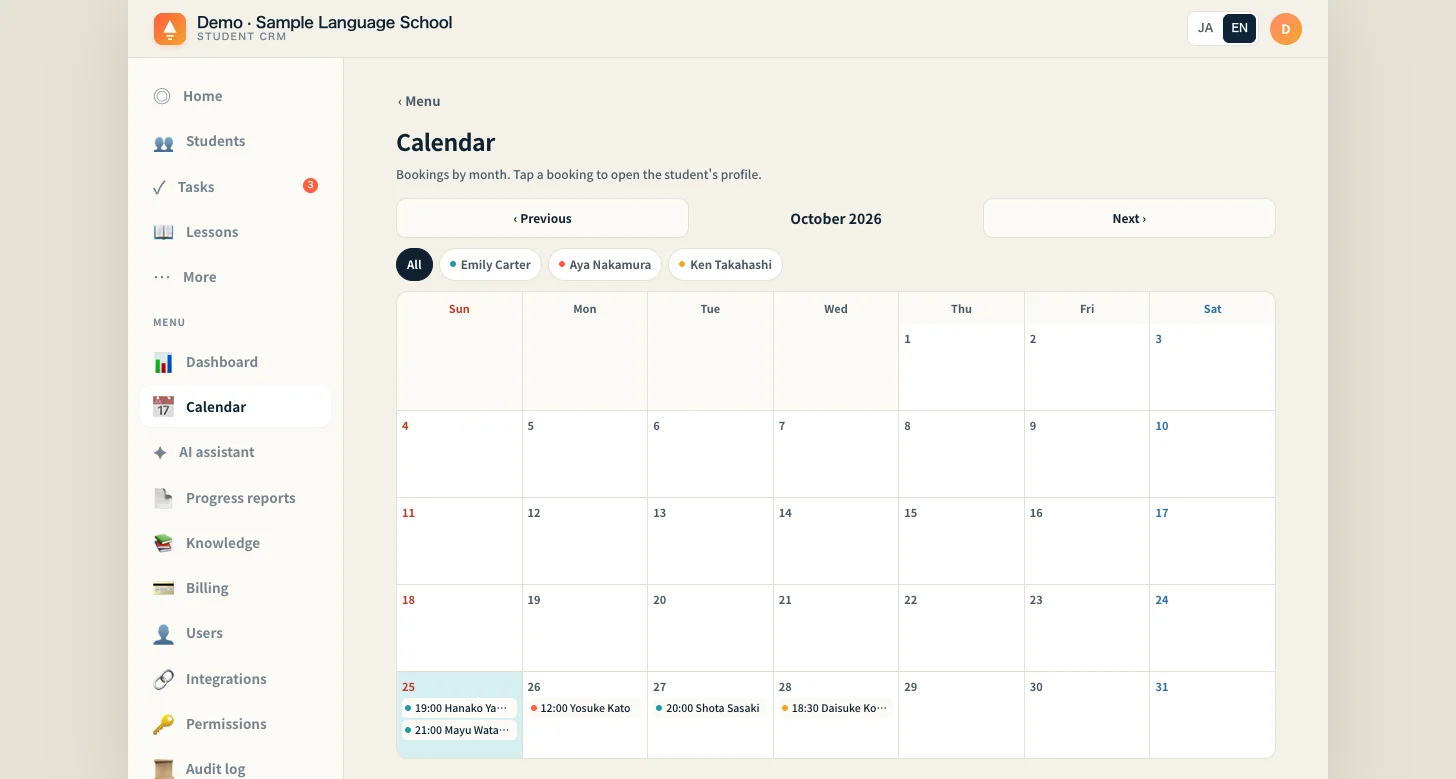 Calendar with EN selected at the top right. Menus, headings and buttons all switch.
In Revenue CRM, one press of EN switches the screen
Press EN in the JA / EN switch at the top right, and the screen changes to English in that teacher’s browser only. No school-wide setting changes, and anyone on their own computer stays in Japanese. A shared computer and browser switch together.
The page reloads when you press it, and the browser remembers the choice. A laptop and a phone each need it once.
Here’s what the teacher gets:
- A + Log lesson button on the student’s profile, so they record the lesson themselves, straight after class
- 📅 Book next lesson on the same page
- Mark as reviewed on homework from their own assigned students, so they can clear that inbox themselves
- 🚨 Act now on Home, showing their assigned students, and Students, Tasks and Lessons in the navigation
The most important point comes first: it’s the screen’s own words that get translated. What people type generally stays as typed. Student names, lesson notes and intake answers appear in whatever language they were written in, and labels added to a note, such as its topic, are saved in Japanese.
So there’s one thing to decide: teachers write in the language they can write in. Try to standardize on Japanese and the retyping comes straight back. Having the office read the English notes as they are will last far longer.
A few more things to know:
- 📄 Progress report drafts come out in Japanese even on the English screen, headings included. Have a Japanese reader check them before anything reaches a student
- The 💬 Send on LINE templates are Japanese and reach students in Japanese, and the confirmation box before sending is Japanese too. Don’t leave the final check to someone who can’t read it
- Nearly all confirmation and error pop-ups stay in Japanese, and so does the hint on the submit button when a field is missing
- To log lessons, a teacher needs an account and a place under 🎓 Teachers by lesson type. Lesson type and teacher are required, and a name not listed for that type is rejected
- Invitation emails are Japanese only. The account setup page has its own switch, but that choice doesn’t carry over after login, and the screen stays in the school’s language until EN is pressed. Have a Japanese-reading colleague sit with the teacher for the first login
- Names your school created aren’t translated. Field names changed under Profile field names appear as you wrote them, and so do custom lesson types
- Translation works from a fixed dictionary, so some Japanese will remain
- There are two languages only: JA and EN
Your first step
Ask one teacher to press EN before their next lesson. After class, they open that student’s profile and write one lesson entry in English with the + Log lesson button. The paper notes stop that day.
The next morning, have the office open that profile and check they can read it. If they can, that teacher’s notes never need retyping again.
Start the demo with just an email address, choose Schools, and press EN at the top right to see the English screens.
The demo opens with just an email address.
Read next
 The work of setting up Teachers only notice new homework after opening the system Teachers repeatedly open the system to find out whether their students have submitted homework. Link a teacher’s LINE account to receive alerts for relevant homework submissions
 The work of setting up The LINE account is hooked up, but no homework and no new followers are reaching the school The school entered its LINE Official Account credentials and assumed it was done, but a setting on the LINE side was still off. Not one homework submission or new follower made it in, and nobody noticed for days LINE connection check (open More > Integrations and the system asks LINE directly, showing 受信中 (receiving), Webhook OFF, URLが違う (wrong URL), 未連携 (not connected) or 状態不明 (unknown), plus the LINE friend count and the number imported into the CRM. The status is shown to the Manager and Office roles)