The new student roster is ready. Why enter every student again?

- The problem
- A school has its new enrollment list in a spreadsheet but still retypes each student into the app
- Revenue CRM feature
- Bulk student CSV import: add new student records from a fixed seven-column roster
- Where
- Students → CSV import / Bulk student CSV import / Choose a CSV file / Import
This month’s new students are already listed in a spreadsheet. An administrator still opens the registration form and copies each name and plan individually. After an interruption, they must check how far they got.
Revenue CRM’s school edition has a CSV import screen for adding students in bulk. Prepare the list in its fixed column order, and treat it as a new-record import rather than an update to existing students.
Separate new students from the existing roster
Only include students who have not yet been registered. Uploading the entire roster every month is not the intended workflow.
The importer does not match existing students and update their records. Repeating the same import can create duplicates. Saving entry time is less useful if the next task becomes reconciling two copies of each student.
Keep a record in your original spreadsheet of which students have been checked and imported. Leave that tracking column out of the import file; the app expects a fixed layout.
Open CSV import from Students
Under Students, choose CSV import. Bulk student CSV import provides a file picker and a text area for checking the contents.
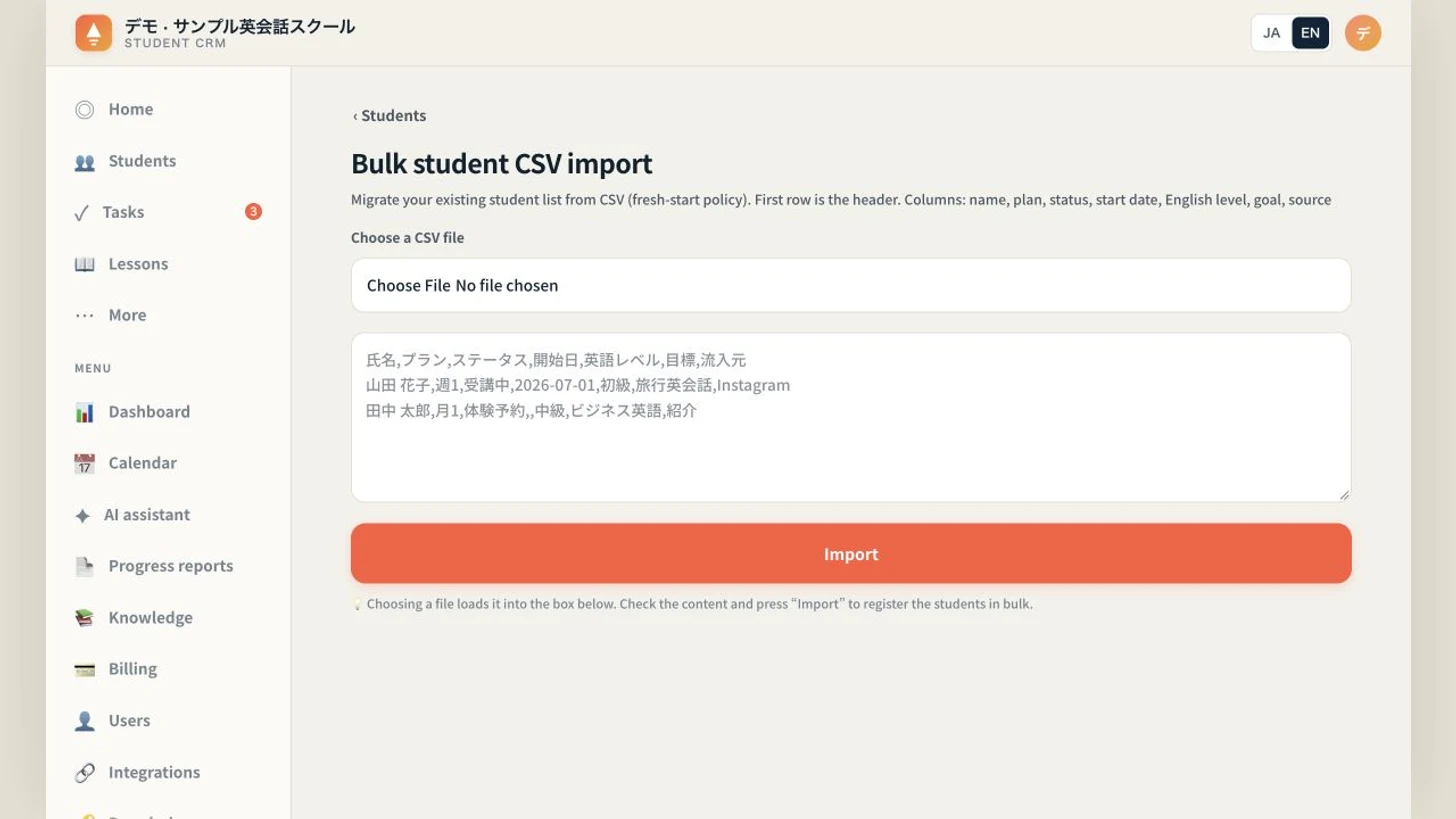 The faint names and values are placeholder examples. No file was selected or imported for this screenshot.
Use seven columns in this order:
Name, plan, status, start date, English level, goal, source.
The first row is skipped as a header. Data starts on the second row. Columns are read by position, not automatically mapped from their names, so retain empty columns rather than closing the gaps. Rows without a name are skipped.
Choosing a file loads its text into the area below; it does not register students yet. After checking it, select Import to add the records. A successful result displays the number registered and reloads the screen. You can also paste CSV text into the area.
Keep the first file simple
Begin with unregistered active students and check their names, plans and statuses. The importer recognizes 受講中 for active and 体験予約 or trial for trial students; a blank status is treated as active. Do not assume every translated label in the interface is accepted as an import value.
This is a simple comma-split format. Fields containing commas or line breaks, including complex quoted CSV fields, are unsuitable. Some field names and defaults also reflect an English-language school workflow.
For a non-trial student, providing a start date automatically sets a graduation date three months later. If that does not match your course, consider a file with the start-date column empty. This import does not migrate tuition charges, payment records or past lesson history.
Start by preparing two unregistered students
This week, take two students not yet in the app and prepare the seven-column file. Have an authorized person who can create students review it before importing into your own school environment.
On the prepaid plan, each import uses three fuel units and is blocked if the balance is insufficient.
If an error appears, check the student list before submitting the same file again. Student records can remain when a later part of the import process fails.
Choose Schools in the Revenue CRM demo and open Students → CSV import to inspect the screen. There is no need to put your real roster into the shared demo.
The demo opens with just an email address.
Read next
 The work of entering data Students who quit stay on the morning to-do list and keep getting fee reminders A parent says on LINE that their child is leaving, or taking a break, but the roster still shows them as active. The next morning there's a task to nudge them to book, before the next due date the fee flips back to unpaid, and teachers learn to scroll past it Student status (on the student profile, ⚙ Change status → Paused, Graduated or Withdrawn takes the student out of automatic tasks, LINE homework reminders, the monthly fee reset and overdue monthly-fee reminders from the next night; Withdrawn also records the date and reason)
 The work of entering data Every lesson gets booked through a back-and-forth on LINE Teachers and the front desk settle "which evening next week?" one student at a time, late at night, then copy the agreed slot into a calendar by hand, so slots get mistyped and double-booked LINE self-booking (a student taps 予約する (Book) in the rich menu and books in three taps: lesson type, teacher, slot. Slots come from the teacher's booking hours minus existing bookings, the teacher's calendar events and school breaks)