
Handed 175 automations, and unable to turn on a single one
- The problem
- Faced with the automation library, the admin cannot tell what their business needs, so they either stay at zero or turn everything on and then turn everything off
- Revenue CRM feature
- Diagnose which automations to turn on
- Where
- Sidebar "Automations" → top card "Find out which ones to turn on" / Settings → Sending domain
Someone becomes the CRM admin and freezes in front of the workflow list. Everything looks useful, and none of it obviously applies to their company. There are only two endings. Six months pass with nothing turned on, or they turn on everything that looks good, the notifications never stop, and two weeks later they turn all of it off.
In eight years of implementations I have rarely seen a third ending.
Automations are harder to remove than to add
Once a notification is on, switching it off comes with a doubt: “someone might need this.” So it stays, unread notifications pile up, and the ones that matter get buried. Going from zero to eight is easy. Going from thirty back to eight takes weeks, including the internal explanations.
So the bulk of the setup work is keeping the initial count small. I put the ceiling at eight.
In Revenue CRM you answer four questions and get a handful back
Open Automations and you will see 175 of them. You do not need to read them all. Press “Find out which ones to turn on” at the top. There are four questions.
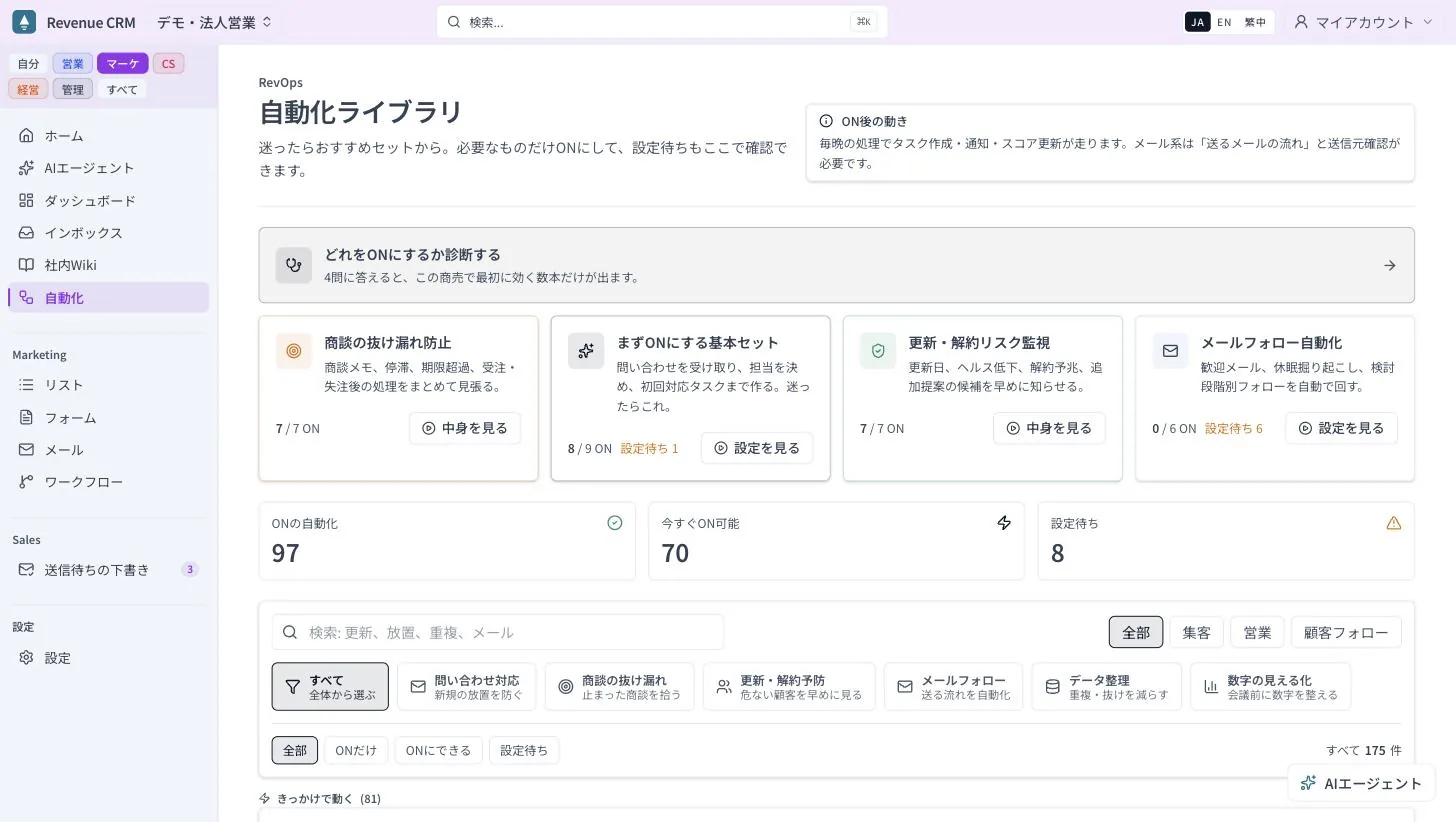 The Automations screen. Above the list of 175 there is exactly one card: the diagnosis. (Screens shown in Japanese; the UI is also available in English.)
- Where do your customers come from? Inquiry form, referrals, events, ads, or your own outreach. Pick as many as apply
- How many new inquiries a month? Up to 10, or 11 and more
- How many meetings does it take to close? One or two, or three and more
- What happens after the sale? Recurring billing, delivery followed by ongoing work, or a one-off
Answer them and you get only the ones that matter first for your kind of business, each with a one-line reason. Never more than eight. Press “Turn on these N” and you are done.
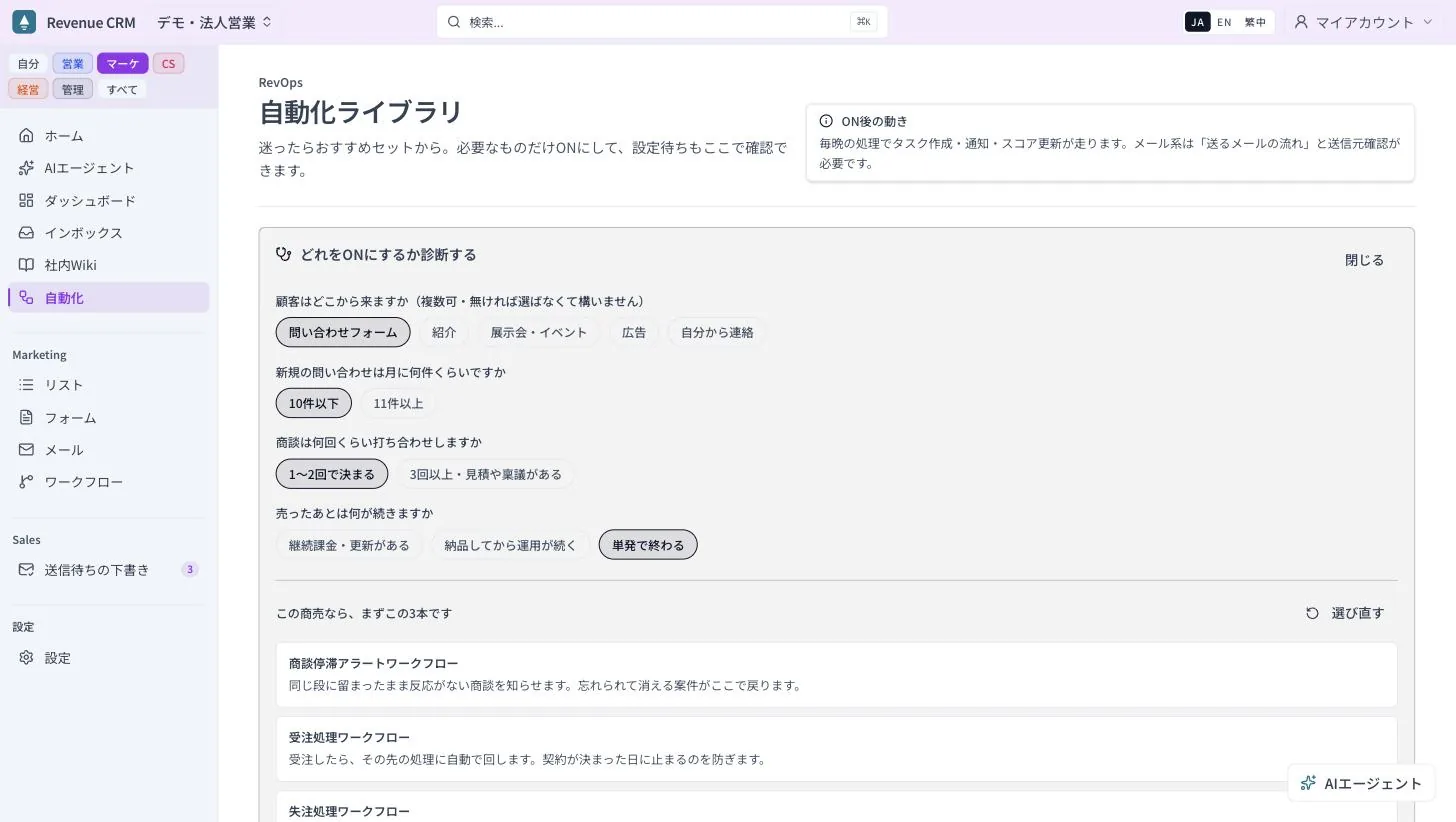 Four questions. Every answer is a button; nothing to type.
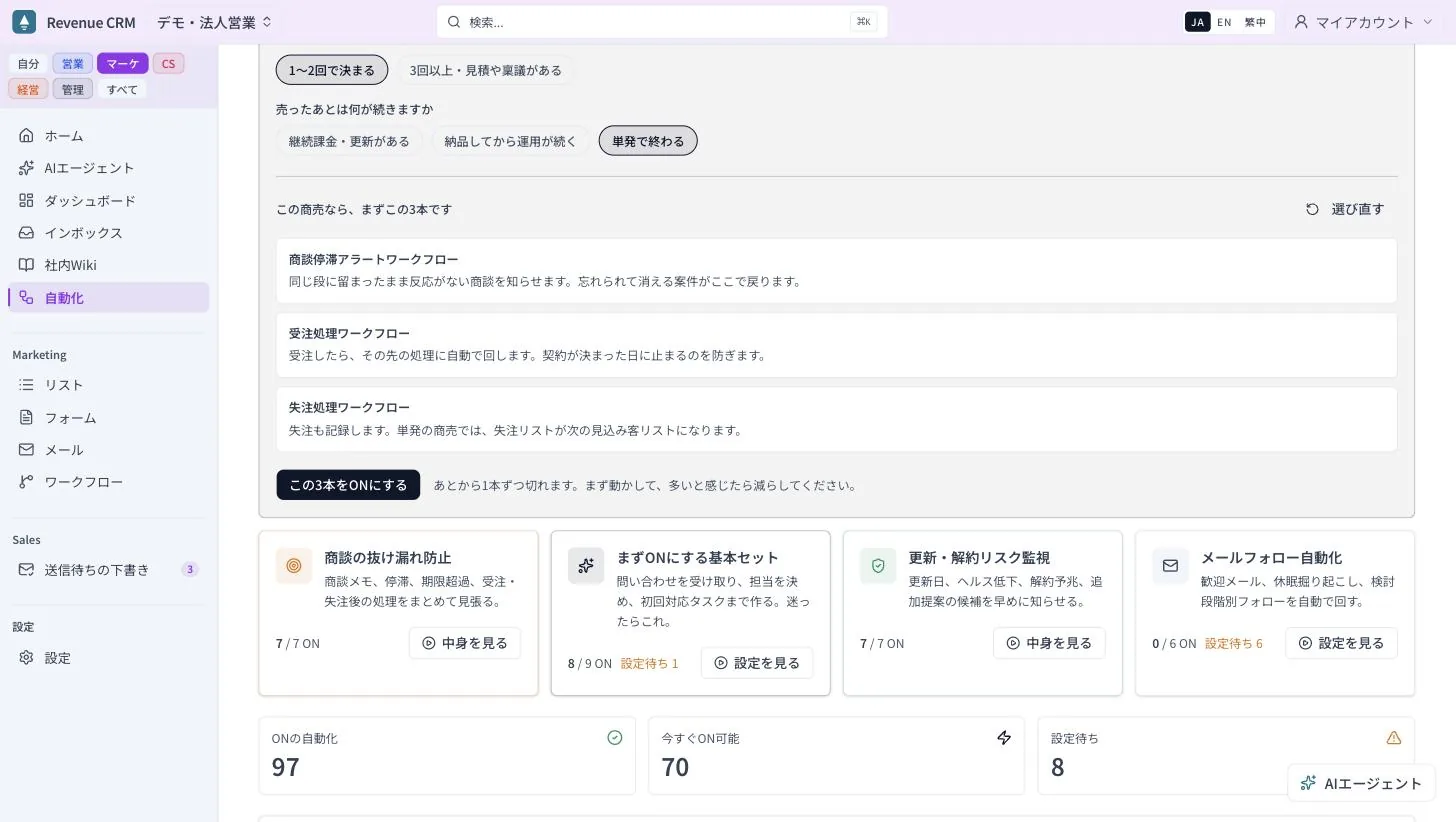 The result is a count and a one-line reason each. This was captured in the demo workspace, where automations that are already on are excluded, so it shows three; a fresh workspace shows around seven, as in the example above.
For example, a business that gets a few inquiries a month through a form, closes in one or two meetings and sells one-off gets roughly this set.
- Capture inquiries as the starting point for the record and the assignment
- Assign an owner to every new lead. Ownerless leads are the most common leak
- Create the first follow-up task once an owner is set. Nothing relies on memory
- Flag deals sitting in one stage with no response
- Hand a won deal straight to whatever comes next
- Record losses too. In a one-off business, the lost list is the next prospect list
- Catch duplicate companies from imports and manual entry at the moment they are created
Seven. That runs the first month.
Say you get 11 or more inquiries a month, and it adds an automation that promotes only leads above a score line, on the assumption that you cannot chase all of them. Say your deals take three or more meetings, and it adds one that keeps an agreed next step and date, and one that records who actually decides. Recurring billing brings in renewal-date tracking and a risk check 90 days before renewal. The set changes with the answers, so answer as your business actually is.
If the email automations show up in a separate box
If you have not set up a sending domain, the automations that send email appear in a separate box labeled “These need a verified sending domain first”. That is the correct behavior: with no sending domain, turning them on sends nothing. Go to Settings → Sending domain, enter your company’s domain, paste the DNS records it shows into your domain registrar’s control panel and press “Verify.” It is a one-time job.
The first step
Run the diagnosis once and live with that number for two weeks. Add one only when you catch yourself thinking “I do this by hand every time.” When that happens, the library search usually turns up exactly one.
The video “Choose your automations” (5 min) shows the steps.
The demo opens with just an email address.
Read next
 The work of entering data The business cards stay in the drawer, and then the rep leaves Exchanged business cards pile up in a personal drawer, and when the rep changes, the relationship leaves with them Scan a card
  The work of running it "Waiting on the customer" for three months, and nobody is looking Deals that are genuinely waiting on the customer and deals a rep has let go quiet sit in the same stage, so neglected deals become invisible Waiting on customer / Pipeline review / Deal stall alert