
The business cards stay in the drawer, and then the rep leaves
- The problem
- Exchanged business cards pile up in a personal drawer, and when the rep changes, the relationship leaves with them
- Revenue CRM feature
- Scan a card
- Where
- Home, top right "Scan a card" / Contacts list "Scan card" / Contact roles on a deal "Scan card"
A sales rep comes back from a trade show, wraps the business cards in a rubber band and puts them in a desk drawer. Forty cards. “I’ll enter them when things calm down.” Things never calm down. Six months later the rep resigns, the successor opens the drawer and finds a stack that tells them a company name and a person’s name. What was discussed, what was promised next, all of it left with the person who quit.
This is not a story about one company. In eight years of HubSpot and Salesforce implementations, I have seen this scene at almost every client.
The loss is not 40 cards. It is 40 relationships
What the company loses is not paper. It is the conversation that happened with each person. Someone who exchanged a card with you has listened to your pitch at least once, which puts them far closer than any lead you buy with ads. That asset never becomes the company’s. It stays the rep’s, and it walks out with them.
The reason the cards never get entered is simple: entering them is extra work. Typing one card by hand, with company, name, department, title, email and phone, takes, say, two minutes. Forty cards is 80 minutes. No rep has 80 spare minutes the day after a trade show. You can install a CRM, but until those 80 minutes disappear, the cards go back in the drawer.
In Revenue CRM you photograph, check, and save
Take a photo of the card and it reads the name, company, department, title, contact details and address, then shows you a confirmation screen. The only typing a person does is correcting a misread.
There are three places to do it.
- “Scan a card” at the top right of Home. This is the everyday one
- “Scan card” on the Contacts list
- “Scan card” in Contact roles on a deal. The person is attached to that deal as you save
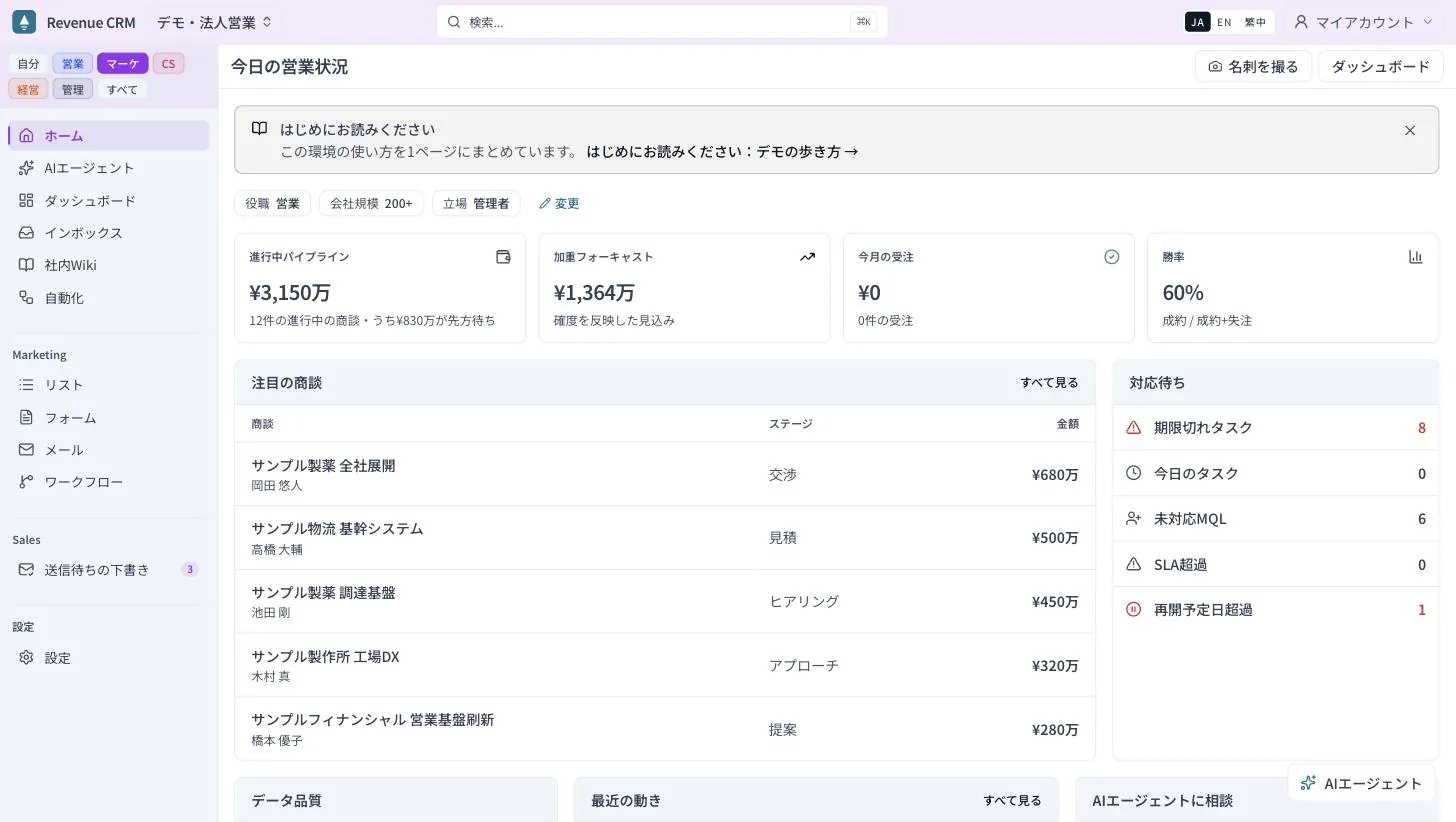 Top right of Home: “Scan a card”. One click from the screen you open every morning. (Screens shown in Japanese; the UI is also available in English.)
The steps are: photograph, check, press “Save”. Shoot in good light with the card filling the frame. The card image itself is kept as an attachment on the contact, so you can look back later at what the card actually said.
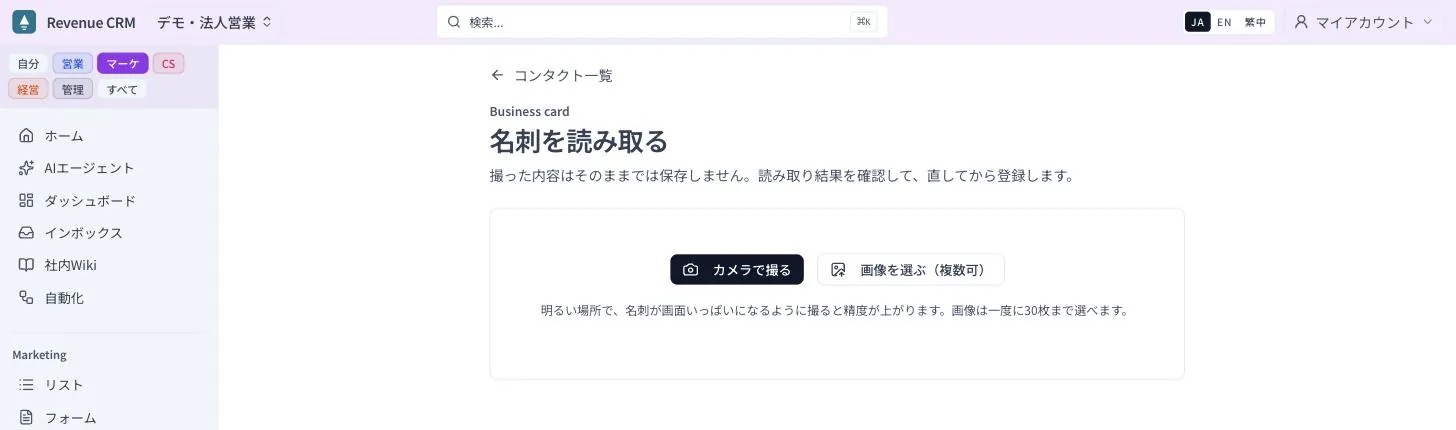 The screen says it in so many words: what you photograph is not saved as is. You check the reading, then register.
On the confirmation screen, look at two things: the company name and the person’s name. Japanese variant characters such as 髙, 﨑 and 眞 are sometimes normalized to their standard forms. If a contact with the same email already exists, the confirmation screen tells you; open and update the existing record rather than creating a new one. Companies are matched to existing records regardless of spelling differences (株式会社○○ and ○○ count as the same company), and a new one is created only if there is no match.
If your company does a lot of events, run “Find out which ones to turn on” under Automations and pick “Events” as one of your lead sources. It will suggest an automation that turns card exchanges and booth visits into leads on the spot, so there is no stack to bring home in the first place.
The first step
Do not try to enter every card in the drawer. This week, scan only the ten most recent ones. That is enough to learn the confirmation screen, and from next week you will find yourself scanning on the show floor. Migrating the rest can wait.
The video “Scan a card” (3 min) shows the steps, and the in-product help article “Turn a business card into a contact” has the same instructions.
The demo opens with just an email address.
Read next
 The work of running it "Waiting on the customer" for three months, and nobody is looking Deals that are genuinely waiting on the customer and deals a rep has let go quiet sit in the same stage, so neglected deals become invisible Waiting on customer / Pipeline review / Deal stall alert
  The work of setting up Handed 175 automations, and unable to turn on a single one Faced with the automation library, the admin cannot tell what their business needs, so they either stay at zero or turn everything on and then turn everything off Diagnose which automations to turn on