
"Waiting on the customer" for three months, and nobody is looking
- The problem
- Deals that are genuinely waiting on the customer and deals a rep has let go quiet sit in the same stage, so neglected deals become invisible
- Revenue CRM feature
- Waiting on customer / Pipeline review / Deal stall alert
- Where
- Deal edit "Waiting & decision" / Sidebar Sales → Pipeline review / Automation "Deal stall alert" / AI agent
Monday sales meeting. On the pipeline there is a deal that has sat in the same stage for three months. “The customer is still aligning internally.” The rep says it, the manager nods, and the meeting moves on to the next deal.
The rep is not lying. The customer really is running an approval process. But in that same stage sit deals the rep has simply let go quiet, with no reply and no follow-up. On the screen, the two are indistinguishable.
When they mix, three things break
First, the forecast stops meaning anything. Money that is decided but not yet visible this quarter and money that is never coming back get added into the same “in progress” number.
Second, the reminders become noise. Turn on a stall alert and it fires at deals that are only waiting for the customer’s approval. Reps learn that “this notification can be ignored,” and then they ignore the ones that matter.
Third, the genuinely neglected deals disappear. “Waiting on the customer” is a convenient phrase, because nobody challenges it.
I do not treat this as a sales problem. The CRM simply had nowhere to write down why a deal is waiting and when it will come back.
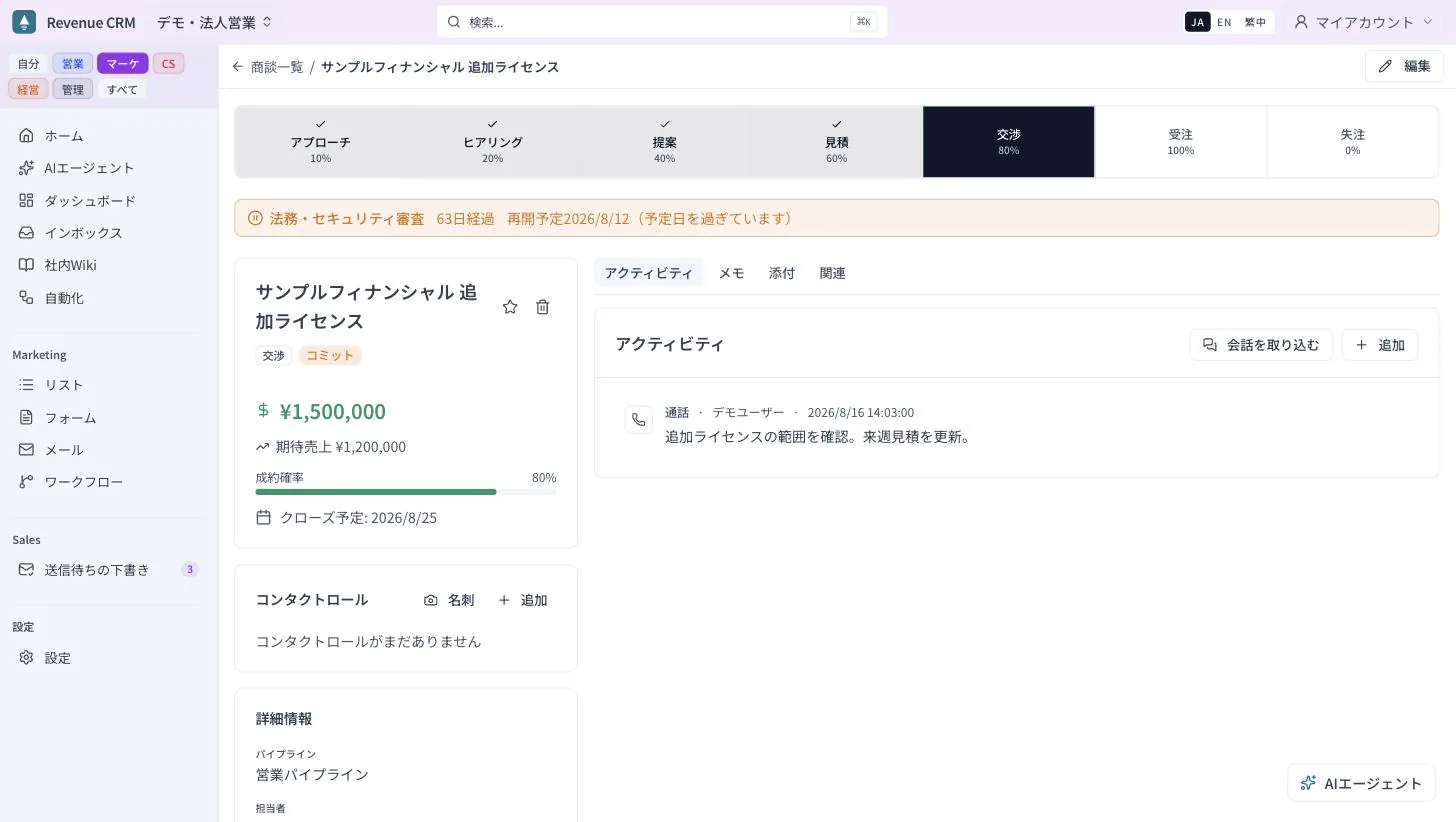 A deal with a waiting reason and a resume date shows a banner at the top of its detail page. This one is past its resume date, so the banner has changed color. (Screens shown in Japanese; the UI is also available in English.)
In Revenue CRM you write down when the deal will come back
The deal edit screen has a section called “Waiting & decision.” You enter three things.
- The reason for waiting: customer approval, legal or security review, waiting on budget release, waiting on the customer’s resources, or work on our side
- The expected resume date: when it should start moving again
- The decision date: the day the customer’s decision was made. This is not a win. It is for deals that are decided but cannot yet be marked won because of revenue recognition or paperwork
Once an expected resume date is set, no stall alert and no dormancy alert fires until that date. The day before, a “check status” task appears; if the date passes, an “overdue resume date” task appears. On Home, the “Open pipeline” tile shows the amount that is waiting on customers as a separate figure.
One caution. If you leave the expected resume date empty, the deal is not treated as waiting and it keeps getting chased as stalled. A wait with no date is indistinguishable from neglect, so always put the date in.
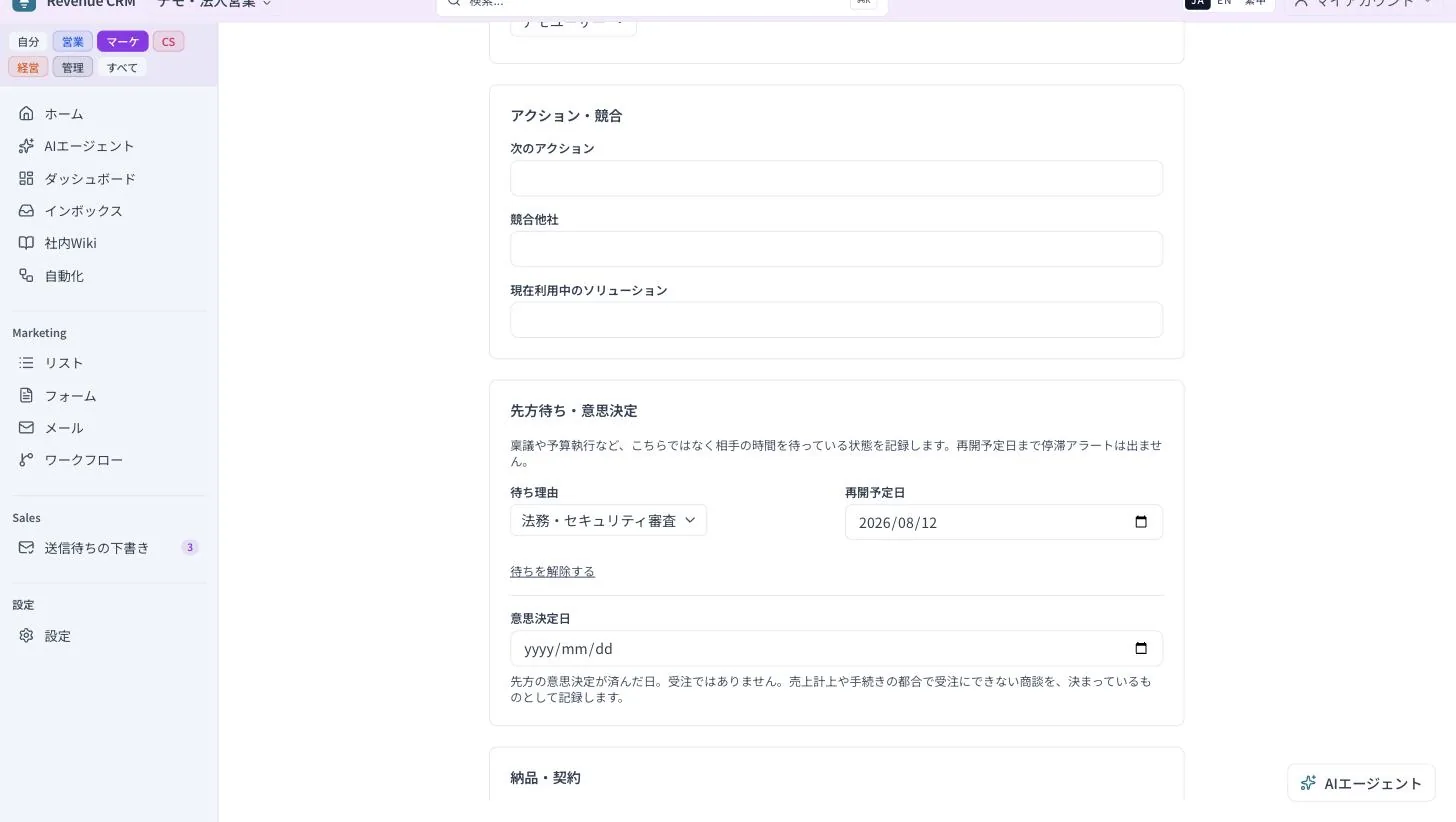 The “Waiting & decision” section on the deal edit screen. These three fields are all there is.
Sort three months of “waiting” in one sitting
For deals that have already piled up, open “Pipeline review” under Sales in the sidebar. You can switch between 30, 60 and 90 days; the default is 60. Deals that have sat in one stage for a long time fall into three piles.
- No record: the CRM cannot tell whether the deal is decided or stuck
- Waiting on the customer’s clock: a waiting reason is recorded
- Already decided: a decision date is recorded
It also shows the amount that is “decided but not visible this quarter.” The work is to clear the “No record” pile using the controls on the right. Either enter a waiting reason and resume date, or press “Already decided.” Every deal you sort moves the numbers at the top.
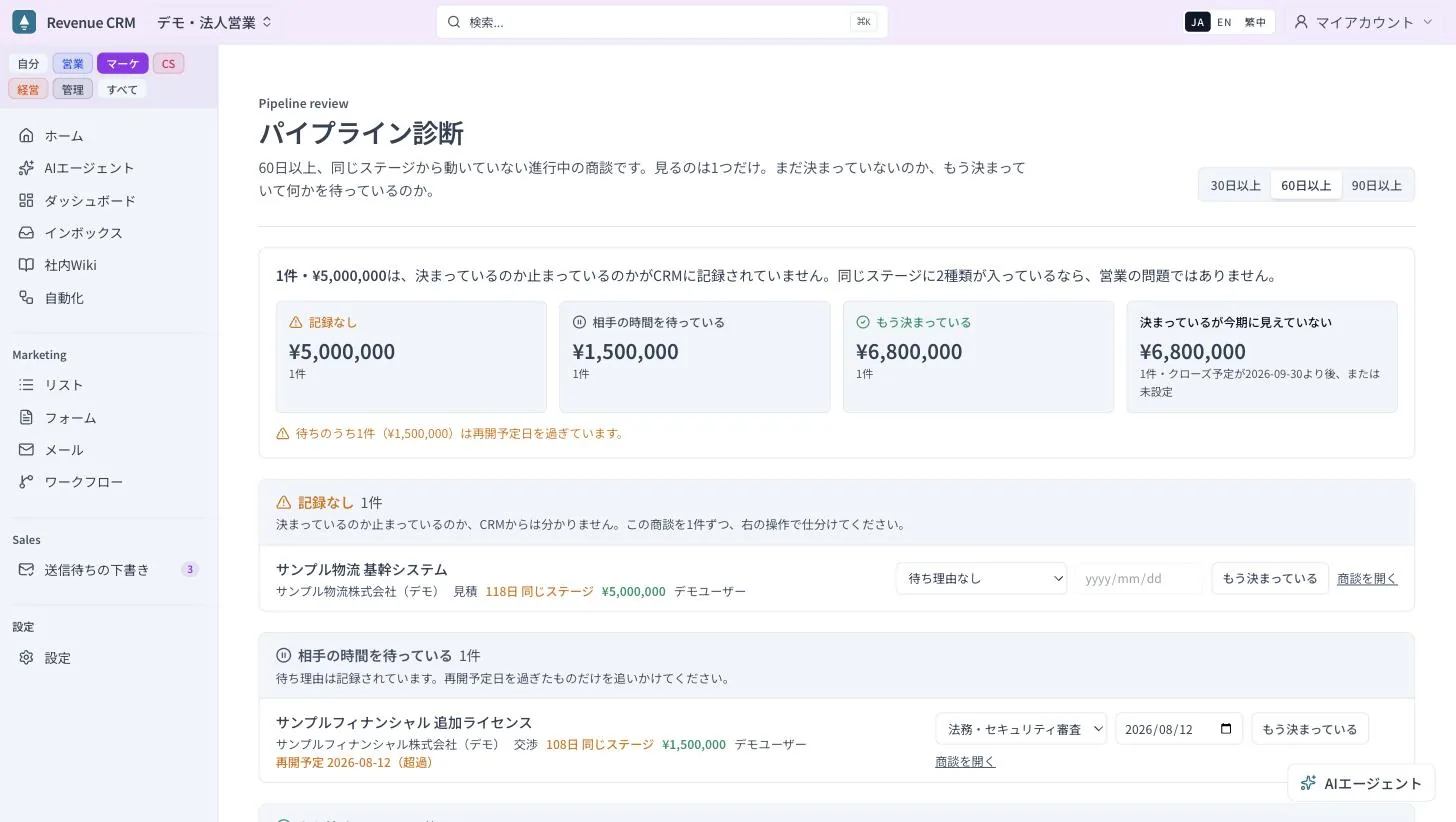 Pipeline review at 60 days. The first line on the screen is the whole point: if two kinds of deal sit in the same stage, it is not a sales problem.
Days in stage are counted from the day the deal entered its current stage. History from before this feature was in use cannot be reconstructed, so existing deals may show fewer days than reality. Accurate counts build up from the day you start.
For the daily check, ask the AI agent in the bottom right: “Show me the deals that are stuck.” There is no screen location to memorize.
The first step
Before your next sales meeting, open Pipeline review at 60 days and sort the entire “No record” pile. It will probably take about 20 minutes. From that meeting on, “waiting on the customer” turns into a reason and a return date.
The in-product help articles “Record that a deal is waiting on the customer” and “Sort stuck deals with the pipeline review” have the same steps. The basics of the deal screen are in the video “Enter deals and see where they stand” (4 min).
The demo opens with just an email address.
Read next
 The work of entering data The business cards stay in the drawer, and then the rep leaves Exchanged business cards pile up in a personal drawer, and when the rep changes, the relationship leaves with them Scan a card
  The work of setting up Handed 175 automations, and unable to turn on a single one Faced with the automation library, the admin cannot tell what their business needs, so they either stay at zero or turn everything on and then turn everything off Diagnose which automations to turn on