The interface is in English, but your custom deal stages are still in Japanese

Your international colleagues have switched Revenue CRM to English. The menus make sense, but a custom deal stage still carries the Japanese name your team gave it. Every pipeline review starts with someone explaining what that column means.
Choosing an interface language and defining your company’s terminology are separate tasks. Revenue CRM lets the same deal stage carry display names in Japanese, English, and Traditional Chinese.
Give one stage several names, rather than creating several stages
Open Settings → Deal stages and click Name in each language. Three language fields appear beneath each stage. Enter the names your team should see in those languages.
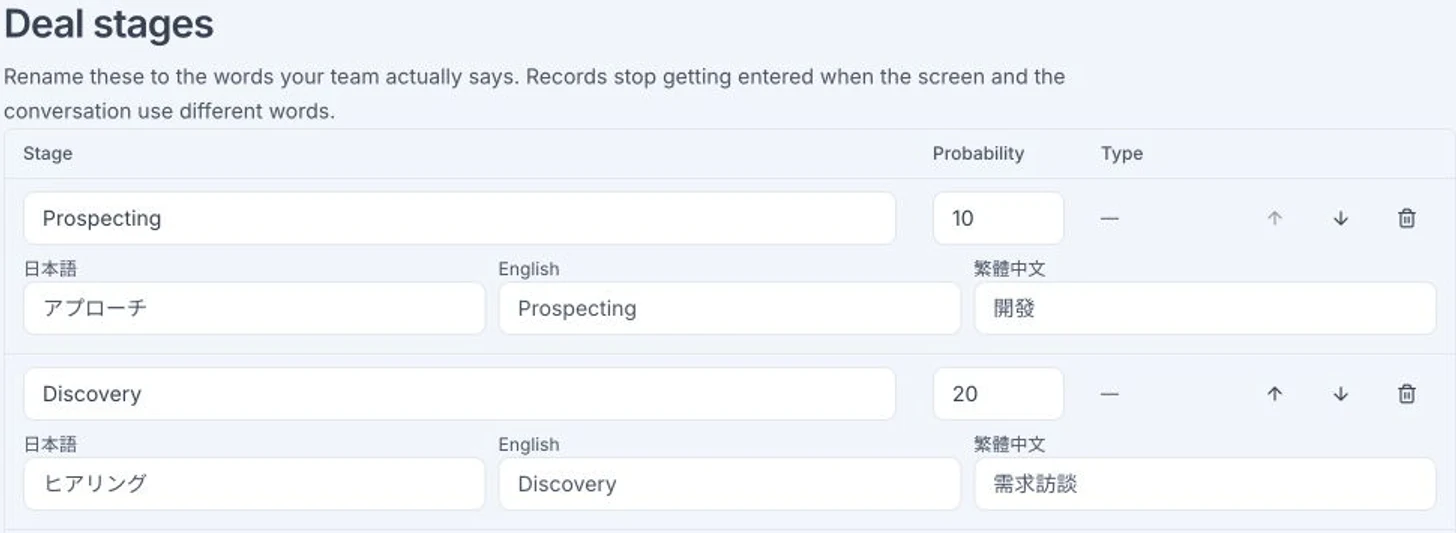 The demo with Name in each language expanded. Faint text is a fallback-name hint, not necessarily a saved value. No names, probabilities, or stage order were changed.
For example, a team might choose “Awaiting customer approval” for a Japanese stage meaning that approval inside the buyer’s organization is pending. This is an illustrative label, not a built-in translation. A stage awaiting your own company’s approval needs different wording. Agree on who must approve and what is still pending before choosing the names.
You do not need separate Japanese and English columns. Language-specific names let colleagues read the same stage in their own interface language. Separate columns would split deals that are at the same point in the buying process and leave someone reconciling them in the review.
Enter the names and save the stage list
Only owners and admins can change the settings. Fill in the relevant language fields and click Save at the bottom. Each language-specific name can be up to 40 characters.
Opening the fields or typing into them does not save the change. After saving, have a colleague open the deal board in their own interface language and check the column name. Reload any screen that was already open.
If you are only adding display names, leave the existing stage’s probability and position alone. Changing only its language fields keeps those properties and the deals’ stage assignments intact. Saving submits the full stage list, so check that no other row was accidentally moved before you save.
An empty language field uses a fallback
You do not have to fill in every language. An explicit name takes priority for that language. Otherwise, standard stages use their built-in translations, while a custom stage falls back to its original name.
For example, the standard Japanese stage アプローチ appears as Prospecting in English. That does not mean the system will infer the meaning of every custom term your company invents. The faint hints in the inputs also do not establish that a translation has already been saved.
These are shared workspace names, not personal aliases. If two teams disagree about when a deal enters the stage, a translated label will not settle that disagreement. Agree on what must be true before a deal moves there, then give that state a name each team understands.
Start with the stage that needs the most explanation
Choose one column that regularly needs interpreting in the sales review. Agree on its Japanese and English names, then have an admin enter them. One stage is enough to check whether the wording works.
Combine this with the interface language setting so everyone can read the same pipeline in a language they use comfortably.
To see the fields, open the demo, choose B2B Sales, and go to Settings → Deal stages.
The demo opens with just an email address.