Teachers need a procedure. The owner has to find the manual again.
A teacher asks where to find the make-up lesson policy. The school owner searches Drive, finds a document they have shared before, and sends the link again. Another teacher asks the same question next week.
The document exists. What is missing is a dependable place for teachers to find it while doing their work. In Revenue CRM’s school edition, Knowledge lists manuals and lets teachers open the contents of a selected article.
Give repeated questions a consistent destination
Start by agreeing where staff should look. “Open Knowledge and select the make-up lesson policy” is a repeatable instruction that does not depend on the owner finding the right message thread.
Suppose an owner spends three minutes finding and resending a document five times a week. Over four weeks, that is an hour. This is an illustrative calculation, not a measured result. Teachers also spend time waiting for an answer before they can act.
A useful manual should be available at the point of uncertainty. Faster replies from the owner cannot be the only way the school gets work done.
Open Knowledge, then choose the article title
On a phone, use More → Knowledge. On a desktop, select Knowledge in the left menu. The list shows titles and categories such as teacher manuals and operations. Every document imported from Google Drive is labelled “Teacher manual · Synced from Drive”.
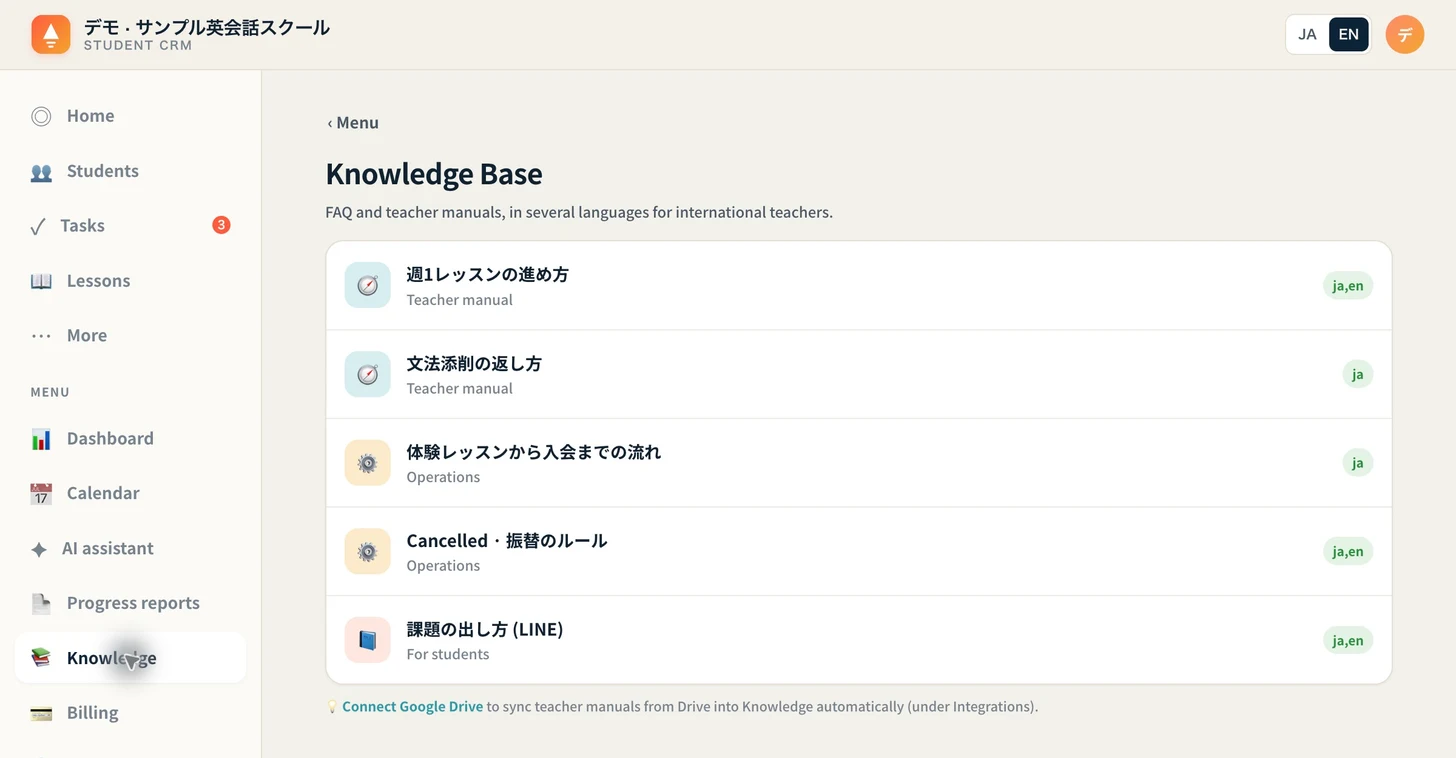 These are sample documents in the demo. Your school supplies its own procedures.
Select a title to read that article’s contents. Use the back control to return to Knowledge and choose another item.
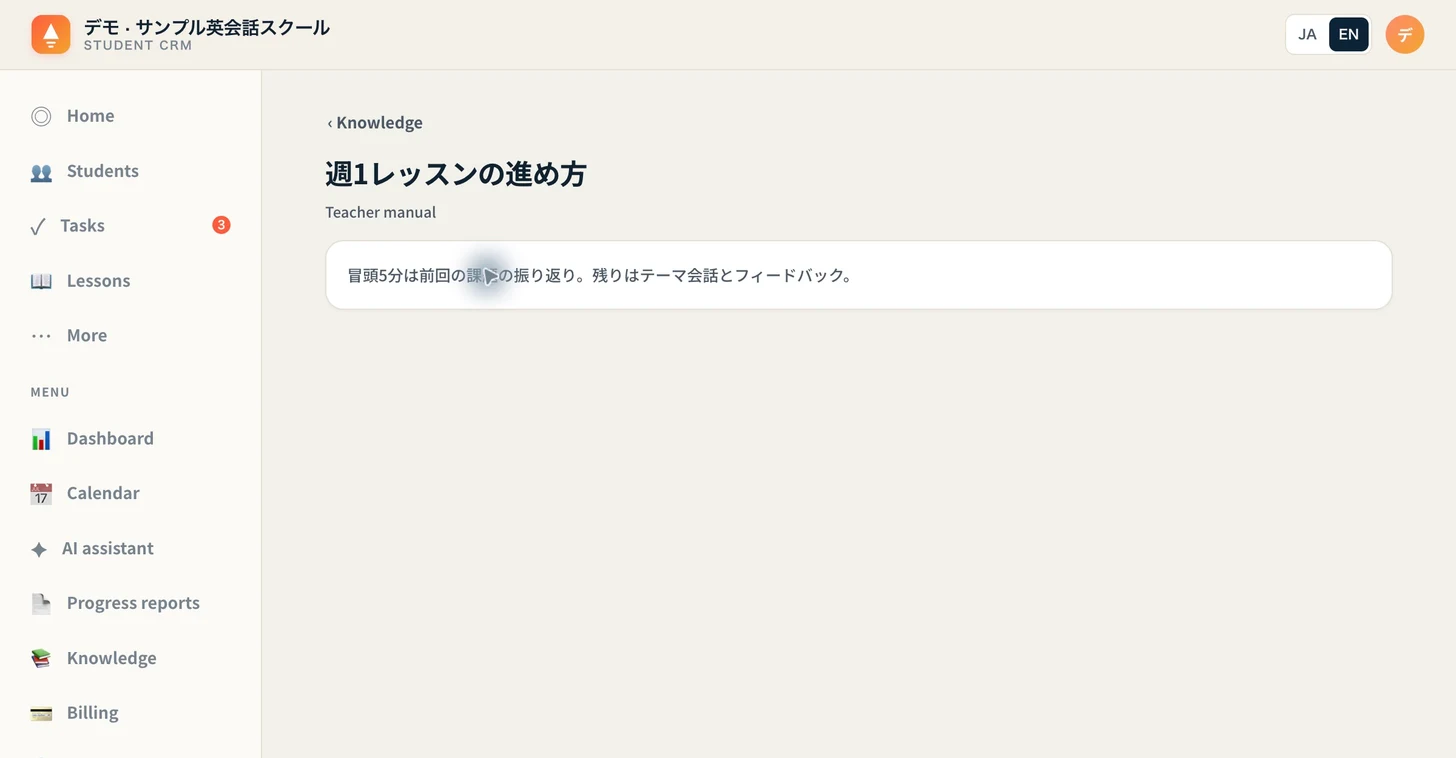 The controls are in English; the sample document remains in Japanese. The interface switch does not translate the manual.
This is a reading workflow. It does not provide controls to write or edit manuals inside this screen. Maintain the original documents in Google Drive.
Prepare documents in a format the app can read
Before teachers can read your own materials here, an authorized staff member connects Google Drive under Integrations, specifies the folder, and uses the save-and-import control. The import includes documents in that folder and its subfolders.
Supported text includes Google Docs, Slides, the first sheet of a Google spreadsheet, and text files. PDF and Word files can appear by name without readable contents. If the app says it could not read the text, check the original in Drive.
Edits in Drive do not appear immediately. They come in with the nightly re-import, or when an authorized staff member runs save-and-import again under Integrations. Documents removed from the Drive folder disappear from the list at the next import. Switching the interface to English does not translate a Japanese manual automatically. Supply the original in a language your teachers can read.
Begin with one frequently requested procedure
This week, put one recurring answer, such as your make-up lesson rules, into a Google Doc. After importing it, ask a teacher to find the title and open the contents without help.
Expand the collection once that route works. The practical result to look for is a teacher checking the procedure before asking the owner to resend it.
Choose Schools in the Revenue CRM demo and open Knowledge to try the sample articles. Reading the samples does not require connecting your own Drive account.
The demo opens with just an email address.