A student is now paused. Who handled the change?
You open a student’s profile and find their status is now paused. Someone has handled it, but you do not know who. The next step becomes a message to the whole team asking who knows the background.
The immediate need is a person to speak with. Revenue CRM’s school edition provides an Audit log for checking recent actions. Its scope matters: the screen shows the latest 40 entries, not a complete searchable history.
Find the person to ask before asking everyone
A matching log entry can narrow the follow-up to the person associated with the action. That avoids making every teacher reconstruct the same event.
Suppose four staff members each spend two minutes checking one group question. That is eight staff-minutes for one inquiry. This is an illustrative calculation, not a measured saving. The owner may also be waiting to resolve the next booking or return-to-class question.
The log is a starting point for a conversation. It does not explain the whole situation or replace asking the person what happened.
Compare the action, student and time in Audit log
On a phone, use More → Audit log. On a desktop, select Audit log in the left menu. Have someone with an Operations, Manager or Office role perform the check; this is an administrative screen.
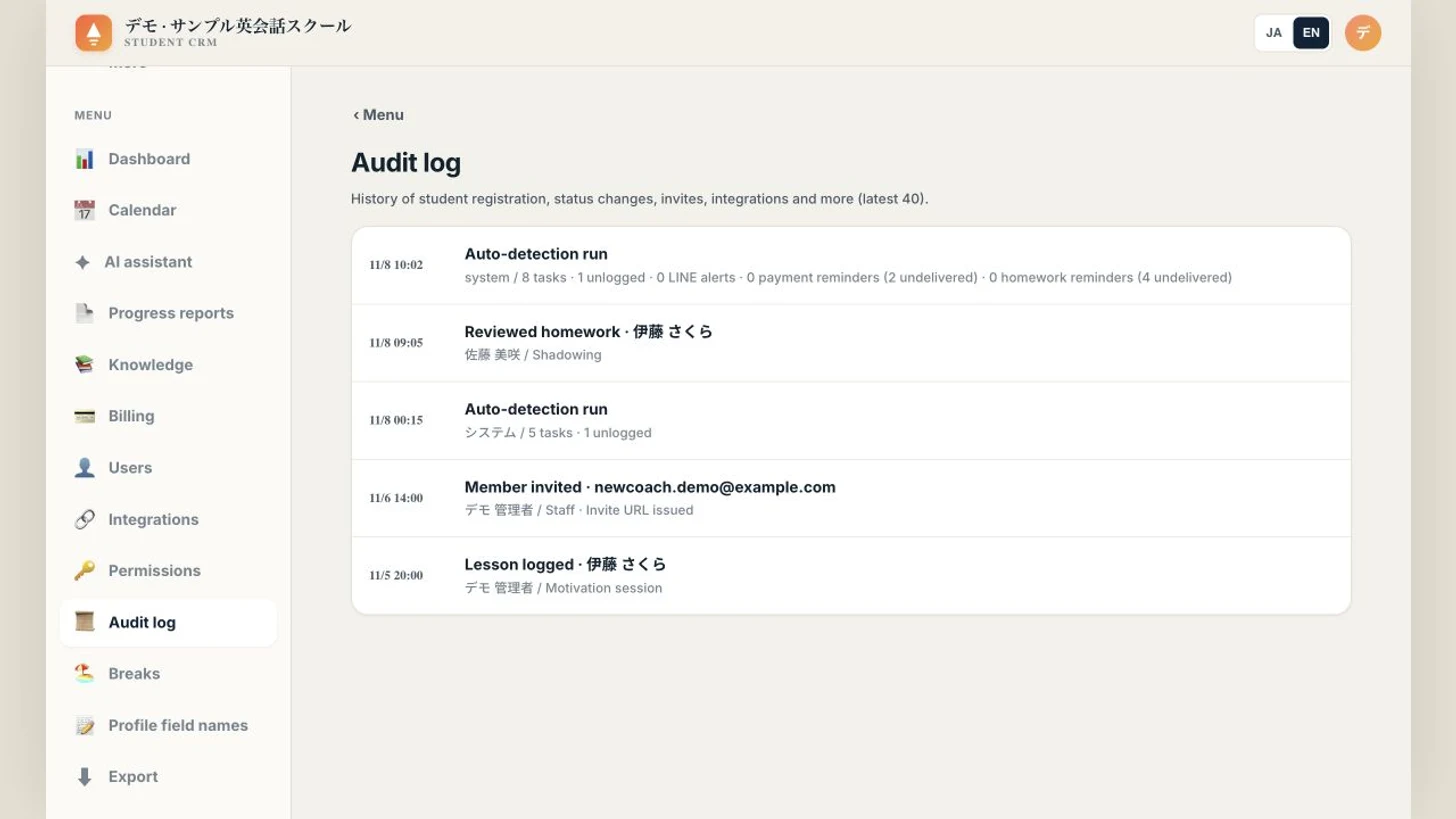 Names and the email address in this image are demo samples, not records from a real client.
Entries appear newest first, with a time, action and target, followed by the actor and any details. Student status changes record the student name and the new status, such as paused.
- Open Audit log soon after noticing the change.
- Look for a status-change entry matching the student.
- Compare its time, actor and resulting status, then ask that person about the background.
Times on this school screen are shown in Japan time. The entry does not provide a full before-and-after comparison or the conversation that led to the decision. Do not infer approval or the quality of a decision from the entry alone.
Use the latest 40 entries for recent checks
There is no screen control here to search all past activity or filter by student or date. Automatic processing also creates entries, so the action you need may already have moved outside the latest 40.
Not every action is logged. For example, marking a task done and deleting a school break are not recorded by those action routes. A log write can also fail. Absence from this screen therefore does not prove that nobody acted.
Keep context that needs long-term retention through the school’s agreed record-keeping process. The recent log is useful for checking who to contact, with these limits in mind.
Start with one person responsible for checking
This week, have the owner or an office colleague locate the screen. When a status change is noticed, check the recent entries before sending a question to the entire team.
If a matching entry exists, ask the named person. If it does not, acknowledge that the log does not settle the question and check other records or speak with staff. That is a practical way to use the screen without treating it as a complete audit archive.
Choose Schools in the Revenue CRM demo and open Audit log to inspect sample entries. You do not need to create any activity to see how the rows work.
The demo opens with just an email address.