A new homework activity is missing from LINE's submission choices

A language school adds a read-aloud assignment. Students open the school’s LINE account to submit it, but the available choices still show only grammar correction and shadowing.
“Choose whichever is closest,” someone suggests. Now a read-aloud recording arrives under the wrong category, and a teacher has to inspect the message to work out what it actually is.
Give students the category you want to record
Submission categories should match the activities the school assigns. Otherwise, reviewing records by type leaves staff sorting out a mismatch that started before the work arrived.
In Revenue CRM’s School edition, LINE’s homework choices come from lesson types marked Homework. The choices are not permanently limited to grammar correction and shadowing. You can add a lesson type and enable homework for it.
This assumes your school’s LINE integration and existing homework submission menu already work. These steps add a category to that workflow; they do not set up the LINE connection itself.
Add the type, then enable Homework
Someone with permission to edit lessons manages these school-wide settings. This does not assign an activity to just one student.
- Open Lessons and go below the lesson history to Teachers by lesson type.
- Click + Add lesson type. This opens the Add teacher form.
- Enter a name such as “Read aloud” in Lesson type, select a Teacher, then click Add. For someone without an account, choose Other (enter a name) and enter their name.
- Find the new type and click ☐ Homework so it becomes ☑ Homework. That switch saves immediately.
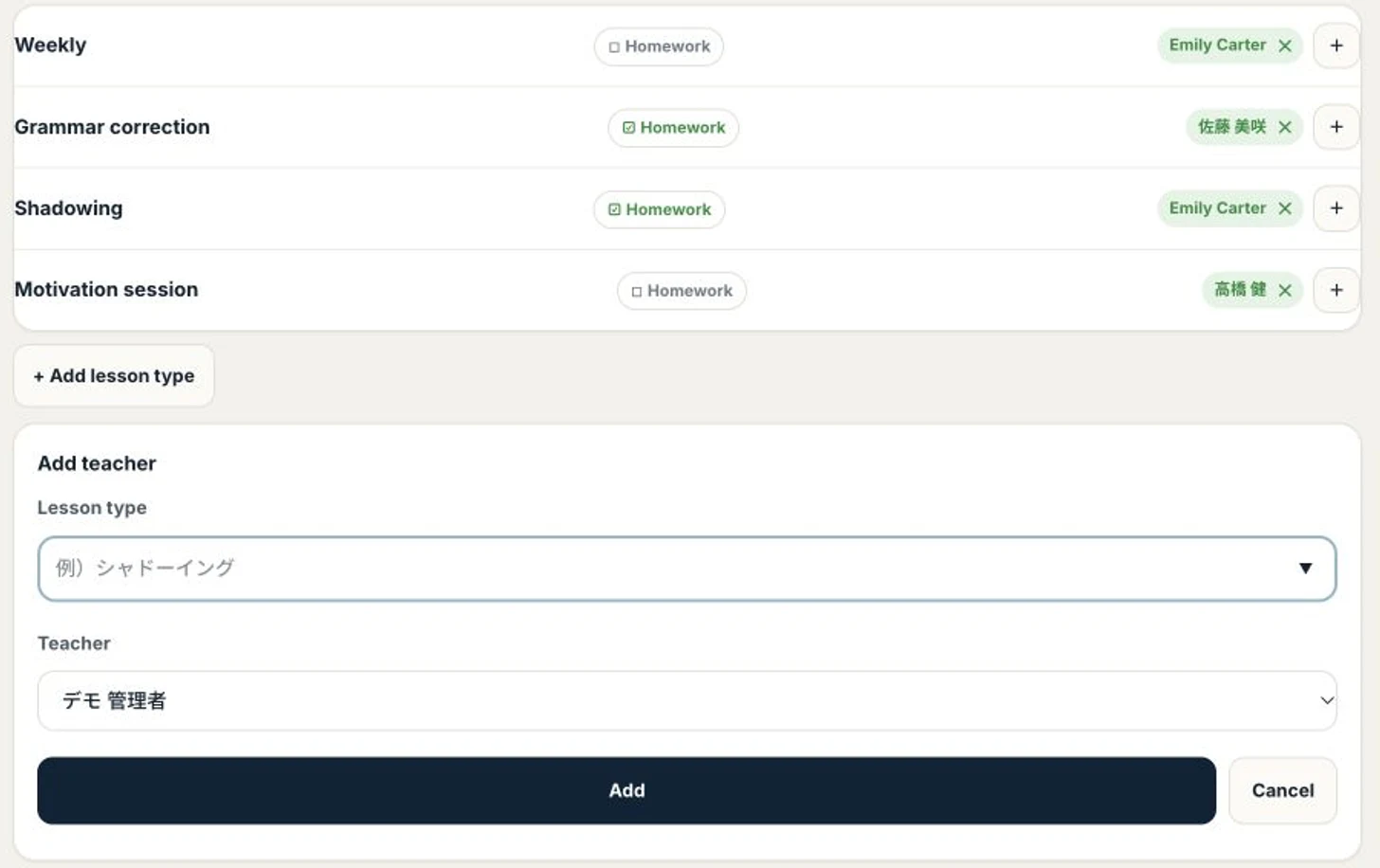
Authenticated demo with fictional data. The form was opened for this screenshot; no type was added and no Homework setting was changed.
A newly added type starts with homework off. If it exists in the CRM but is missing from LINE, check this setting first.
Once configured, the new name is included when a student opens the existing homework submission menu again and receives the category choices. They choose the category before sending their photo, video, audio or text as prompted. Adding a type does not require rebuilding the LINE menu itself. A custom name remains the name you entered, so choose wording your students will recognize.
The switch also affects missing-homework checks
Homework is more than a display preference. Enabling it applies missing-submission detection for that type to every active student; there is no per-student setting. A student who has never submitted that type is counted from their start date (or the date they were added), so the next detection run can list “Homework not submitted” for that type on many students at once. Students who have automatic homework reminders enabled will also be sent a reminder. Enable it only for activities the school really assigns, and review those student settings before introducing a type.
The teacher entry on this screen is also separate from the homework-review assignments on an individual student’s profile. Registering a teacher here does not complete that student assignment. Confirm who will review submissions separately.
LINE shows at most the first 13 homework types. Button labels are shortened to 20 characters. Use short, distinct names; students should not need the hidden end of a label to tell two activities apart.
Start with one upcoming activity
Pick one assignment you are about to introduce. Give it the same name in the course instructions and in the submission choices, then check the relevant reminder settings.
To inspect the controls first, open the Revenue CRM demo and look at Teachers by lesson type in the School edition.
The demo opens with just an email address.