Someone downloaded your guide. Nobody called them.

Tuesday morning, someone downloads your guide. The alert lands in every rep’s inbox. Everyone reads it, and everyone assumes someone else will call.
By Friday nobody has. The following week a rep finally gets through, and the first thing they hear is “Sorry, which guide was that?” The reps aren’t the problem. The problem is an alert that arrives without an owner.
What you lose is the lead you already paid for
People who download something are most willing to talk that same week. And the work stalls in two predictable places: the first call, and whatever should happen after nobody picks up.
Say you get 30 downloads a month and reach half of them that week. That’s 15 people a month who don’t hear from you in the week they’d most likely talk, after you paid to write the guide and to bring them to it. I’d fix that before commissioning the next guide.
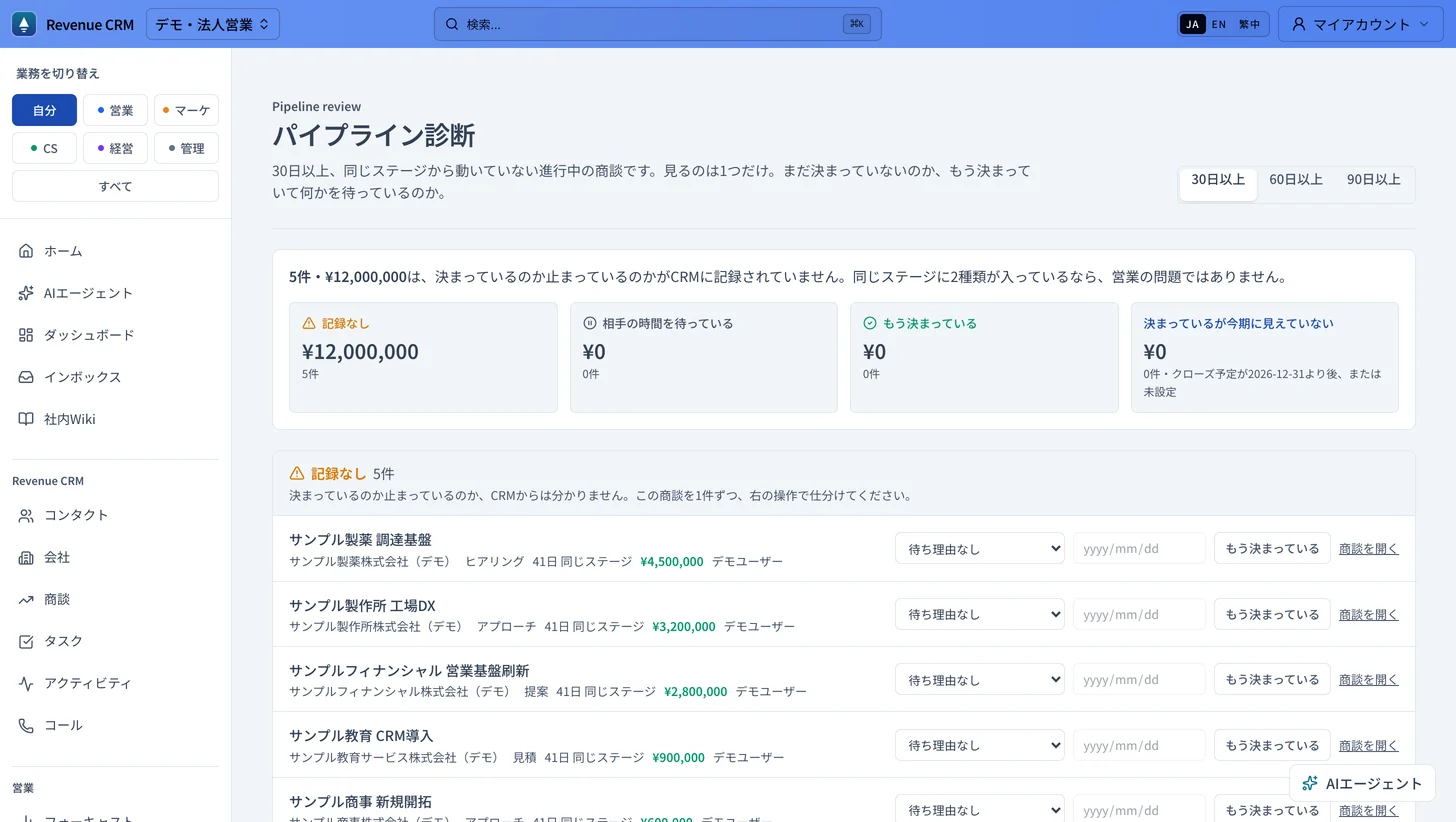 Shown in Japanese on the pipeline review page, captured in October 2026; the top of the sidebar looks different now. Download follow-ups land under Tasks in the left sidebar, with an owner on each.
In Revenue CRM, one checkbox on the form turns the next step into a task
Tick Use the download follow-up playbook on the form, and each person who downloads gets a task with an owner, and the call outcome decides what comes next. There are four stages: review, a same-day call, an email if nobody answers, and a follow-up three business days after that email goes out.
- A submission creates a high-priority review task first, because nobody has decided yet whether sales outreach to a new person is allowed. Ticking the form’s consent box doesn’t change that
- Open Sales playbooks in Settings, click Confirm outreach allowed, then press Reviewed: call next on the task card. It becomes a call task. Contacts already marked as OK for sales outreach start here. It’s due that day, or the next business day if it arrives after the cutoff (18:00 by default) or on a weekend
- After the call, open Tasks in the sidebar and press No answer, Connected / hand off, or End follow-up on the card
- No answer creates an email in Drafts waiting to send. Nothing goes out until someone reads it and clicks Approve and send
- Once it sends successfully, a follow-up task appears for three business days later. If that’s No answer too, the follow-up ends
It stops by itself if a reply syncs in, a meeting lands on the calendar, the contact becomes blocked, or a deal is created for them. To stop one by hand, use Stop follow-up under Sales playbooks. The same page lists Active download follow-ups, so you can see who is at Call pending, Review needed, Email approval / send pending, or Follow-up scheduled.
What to know before you rely on it:
- A new contact with no owner goes to whoever joined your organization first. Neither the form nor Tasks has a field for choosing someone else. To route work to another person, use Record absence & transfer tasks under Sales playbooks (it moves all their sales tasks), or Reassign sales tasks to an admin when not accepted in time. Accept sales tasks, at the top of Tasks, has an Accept button for the person who takes one on
- Without a phone number it can’t move on, so check that your form asks for one. A submission with no email, or a repeat from someone already in follow-up, adds no task
- Ticking the box switches off Welcome, workflows and first-email drafts for that form. Any auto-reply or internal alert sent by a workflow stops too, so the alert in our opening scene goes away unless you turn on the alerts below. You can still hand over the file with File to hand over after submission, which adds a button to the confirmation page
- The draft is fixed text in Japanese and opens by saying you just tried to call. The form’s name goes into the subject and body, so don’t give it an internal name. There’s no signature, so click Add signature if you’ve set one. Task titles are Japanese too. If nobody sends the draft, it only shows in the sidebar count and as Email approval / send pending. No alert goes out
- Connected / hand off doesn’t create a deal, so create one when you’ve spoken. That button, End follow-up and Stop follow-up also cancel the contact’s unsent drafts and remove them from sequences and email workflows. To undo that, use Allow new automated enrollment on the contact
- If a deal or a follow-up is already running at that company, you get a review task that Reviewed: call next won’t clear. Merge it into the existing work, then click Stop follow-up
- Choose outcomes on the card. The circle under Do now on the home screen won’t close these, it just bounces back
- Alerts are off by default. An owner or admin ticks Notify on task creation and before / on / after the due date under Sales playbooks and clicks Save just above it, and they start at intake. Set the destinations under Notifications in Settings
- Weekends are closed automatically, but public and company holidays only count if an owner or admin enters them under Additional holidays. Your year-end closure is worth adding now
Your first step
Pick one download form and tick the box. Don’t start with all of them. A week on one form shows you who the tasks land on and how much review work this really adds.
Start the demo with just an email address and choose B2B sales to see where Tasks and Sales playbooks in Settings live. The demo is shared, so look but don’t click through.
The demo opens with just an email address.