Before every pipeline meeting, someone exports the deals and pastes them into ChatGPT
Friday, 5 p.m. A sales manager exports the open deals to CSV, pastes the file into ChatGPT, and types: “Summarize the biggest deals and flag anything that looks stuck.”
I’m not going to tell anyone to stop using AI for this. It works. But the routine has two holes. The data is stale the moment it is pasted. And nobody at the company can say which AI account, owned by whom, now holds a copy of the pipeline.
The real cost is freshness and a missing record of where the data went
Asking an AI is fine. Carrying the data to it by hand every week is the problem.
Say the export and paste take 30 minutes once a week. That is about two hours a month, which is the smaller cost. Close a deal on Monday morning and the AI is still reading Friday’s file. Meanwhile, the pasted list sits in that person’s chat history. When they leave, last year’s pipeline leaves with them in a personal account, and there is no way to pull it back.
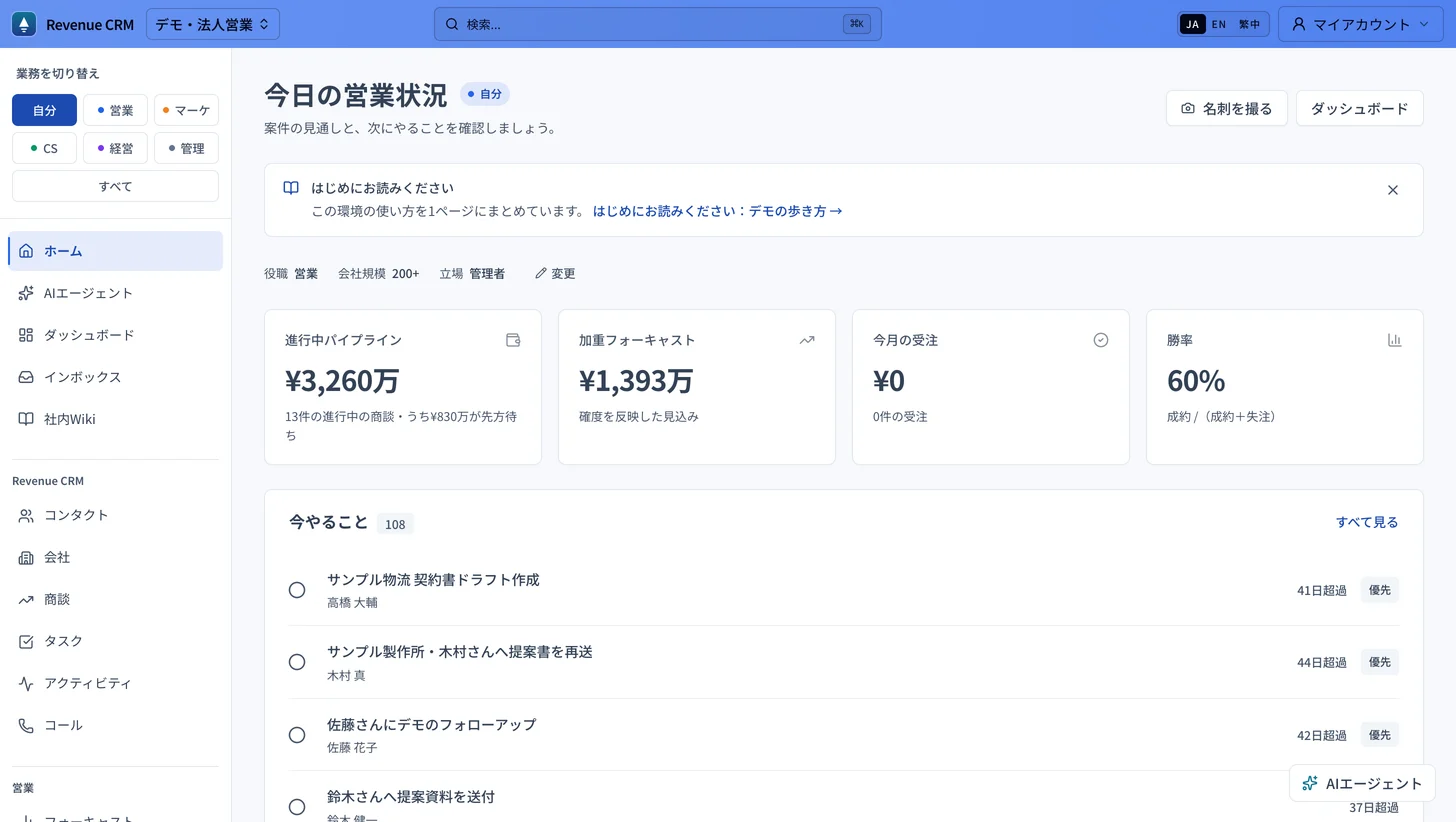 An example of the numbers that get exported before a meeting. A connected AI app does not read this screen; it reads the deal records themselves. The screenshot is in Japanese.
In Revenue CRM, the AI app connects directly, and the company keeps the list of connections
You can connect ChatGPT or Claude to Revenue CRM. When someone asks a question, the app reads the contacts, companies and deals as they are at that moment. No pasting.
Only a workspace owner or admin can connect an app.
- In the AI app, add a custom connector with the URL
https://crm.consilegy.com/api/mcp. Until something is connected, the same URL is also shown in the Connected AI apps section under Settings > Integrations & channels > API keys (owners and admins only). Whether custom connectors are available depends on your AI app’s plan and settings - After you sign in to Revenue CRM, a screen asks “Connect (app name) to Revenue CRM?”
- Choose the Workspace, set Permission to “Read only” or “Read and write (create contacts and deals)”, and click “Allow and connect”
Every connected app then appears under “Connected AI apps” on the API keys page, with its permission and the date it was last used. To cut it off, click “Disconnect”. The company keeps one list of which AI apps are connected, with what permission, and can cut any of them off. Answers already given still sit in the chat history of the account that asked.
What the AI can do still has limits. Better to know that up front.
- What it reads. Contacts by name or email, companies by name, and deals sorted by amount, largest first (deal name, amount, probability, close date, stage, company). It can also open a single contact, company or deal along with its linked company, deals and recent activities, list pipelines and their stages, and list recent activities. A contact’s Notes field is included. It does not read the Tasks list or deal owners
- The deal list includes deals that are already won or lost. When you ask about open opportunities, tell the AI to group by stage, or it may count closed deals
- With “Read and write”, it can create contacts, companies and deals, edit contact fields, change a deal’s stage, amount, close date, name or probability, and log notes, calls, meetings and other activities. The consent screen still labels this option “Read and write (create contacts and deals)”, but it covers edits and activity logging too. It cannot delete records or send email
- It sees the whole workspace. The view scope set under Settings > Permissions (All, Team, Owned) does not apply. Anyone using the connected AI account can read every record, so connect it from an account used only by people who are allowed to see everything
- Unless the AI app asks for read only, “Read and write” is preselected on the consent screen. Switch it to “Read only” for the first connection
- What happens to data once it reaches the AI app is governed by that app’s terms and your own AI policy. What Revenue CRM controls is the connection itself
Your first step
This week, have an admin connect one app with “Read only”, from an account used by someone who may see all records.
Then ask the person who usually does the export to try: “Show the five largest deals in each stage.” If the answer matches the CSV they would have pasted, Monday’s export can stop.
Open the demo with just an email address, choose “B2B sales”, and go to Settings > API keys to see the Connected AI apps section and the connector URL. The demo is shared, so please look without connecting an AI app.
The demo opens with just an email address.