Your AI policy is unfinished. Your customer records do not have to wait.
The sales team has agreed to keep customer history in one place. Then someone asks which AI features staff may use, who approves generated emails, and whether the company has finished its review. The customer management rollout stops with the policy discussion.
Those decisions can move at different speeds. Revenue CRM’s B2B edition has a workspace-wide AI switch, so you can establish the record-keeping process while deciding when to introduce AI assistance.
Separate the pending AI decision from the customer record problem
An unfinished AI policy does not remove the need to record account ownership and customer conversations. Treating every feature as one approval decision keeps both waiting.
Suppose three reps each spend ten minutes a week hunting for information. Over four weeks, that is two hours. This is an illustrative assumption, not a measured saving. The larger concern is that more history stays scattered while the team waits.
Define the initial workflow explicitly: who enters records, who may view them, and who handles tasks that would otherwise rely on AI. That gives the team a concrete starting point.
Owners and admins control the switch in Settings
Open Settings → AI features. The switch next to AI features: on applies to the whole workspace, rather than one user’s preference. Only owners and admins can change it. The Automatic translation of records switch below it is a separate setting.
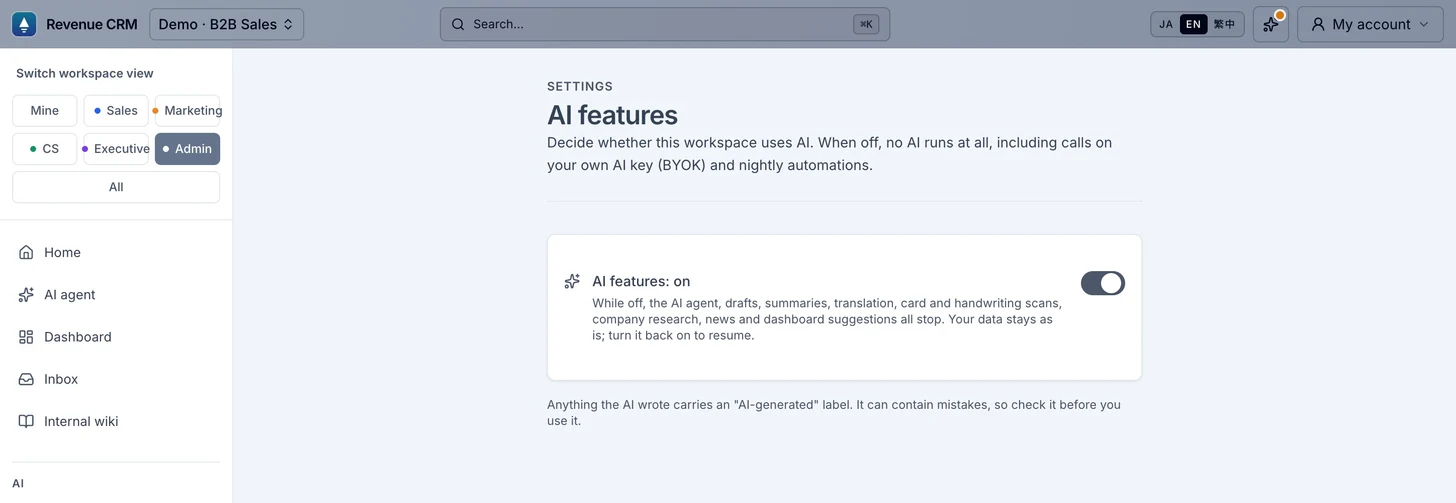 The demo is shown with AI on. The switch was left unchanged when this screenshot was taken.
To turn AI off, an authorized administrator changes the switch and checks both AI features: off and the success message. Do not treat a click alone as confirmation that the setting was saved.
While off, AI assistance such as the agent, drafting, summaries, translation, business-card and handwriting scans, and company research stops. The setting also covers calls using your own AI key and AI use in nightly processing. Existing data remains; turning AI back on allows those features to be used again.
Plan for the change in daily work. If staff expected to scan cards or generate drafts, agree who will enter the information or write the message manually during this period.
Other servers can take up to about 30 seconds to pick up the setting. An environment awaiting a database update displays a warning and cannot save the change; AI remains on there. Check the result on the page.
Start with an owner and a condition for resuming
This week, have one administrator locate the setting and write down what must be agreed before AI is enabled. For example, decide who reviews an email draft before it is used.
The switch controls AI within this workspace. It does not control separate AI services employees may use elsewhere, so it supports an internal policy rather than replacing one.
To locate the controls, choose the B2B edition in the Revenue CRM demo, then open Settings → AI features.
The demo opens with just an email address.