Teachers keep asking the owner which lessons are theirs
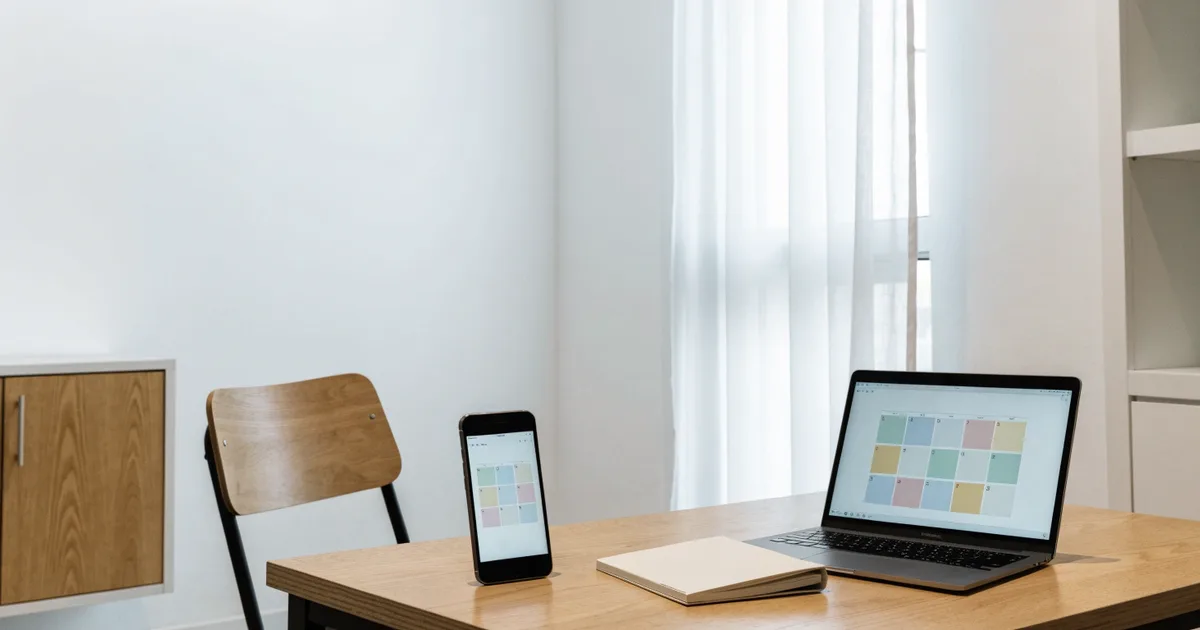
Sunday night. A teacher messages the owner: “What time am I teaching tomorrow?” The owner opens the booking list, answers, and copies the lesson into the teacher’s calendar while they are at it. With four teachers, this happens every week. And about once a month, a lesson lands on top of a teacher’s dentist appointment.
What you lose is the owner’s time, and teachers who can run their own week
The real loss is that the schedule lives in the owner’s head. When the owner is away, nobody knows who is teaching when.
Say four teachers, each asking twice a week, five minutes per question and retype. That is 40 minutes a week, about three hours a month, spent relaying schedules. One collision a month means twelve times a year you message a student to move a lesson.
In Revenue CRM, a teacher connects their own Google Calendar once and their lessons appear there
Once a teacher connects, the lessons assigned to them go straight into their Google Calendar. Nobody has to ask the owner, and the owner stops retyping.
On the home screen, the teacher taps Connect Google Calendar on the 📅 card and approves access with their own Google account. Revenue CRM creates one dedicated calendar for bookings and writes nothing to the teacher’s other calendars. When it is done, the home screen shows Calendar connected.
If the teacher allows it during connection, their personal calendar is read for busy times only, never the event details. Those times are removed from the slots students see when booking on LINE, so a student can’t book over the dentist. The owner can check who has connected under More → Integrations → Teachers’ calendars.
Four things to know before you rely on it:
- Move or cancel bookings in Google Calendar, not in Revenue CRM. The only way to move a booking inside Revenue CRM is Reschedule under Missing log on the Lessons screen. (The event description says to make changes in the CRM; for now, the calendar is the place.) Changes made in the calendar come back to the booking when Google sends its change notification. If notifications could not be registered, a red calendar alert appears under Act now on Home, and changes come back only when someone taps 🗓️ Sync with Google Calendar now under Lessons, or in the automatic run around 10:00 every morning Japan time
- Events created directly in the calendar are not imported as bookings. New bookings still go in through LINE booking or the student record
- Tapping Reschedule under Missing log on the Lessons screen books a lesson seven days from the day you tap it, at the same time and with the same type and teacher as the original. If the student has a booking within the next seven days, the nearest one is cancelled and its calendar event is removed. If there is none, nothing is cancelled
- There is no disconnect button. To disconnect, the teacher removes access from their Google account settings. The calendar that is created is named after the school, the same name shown on the Home card
Your first step
This week, pick one teacher and ask them to tap Connect Google Calendar on the home screen. Then sit with them and check that next week’s lessons have appeared.
Tell them one thing: “If a lesson moves, move it in your calendar.” If a week later that teacher has stopped asking “what time am I on?”, connect the next one.
You can look around the school edition in the demo. Pick Schools. All you need is an email address.
The demo opens with just an email address.