One executive, two companies, two contact records, and half the history on each

One of your reps is working a deal with a founder at her manufacturing company. Another rep met the same founder at a trade show, wearing her other hat as head of a services firm, and scanned that card.
Different domain, different email address, so your CRM now holds two people. Both reps send a proposal the same week. The reply is short: “Do you two talk to each other?”
What you lose is the whole picture of one person
When one person becomes two records, everyone who opens either record sees only part of the history.
The people who hold more than one role tend to be the ones who matter: founders, board members, group executives. Say a founder with three companies sits in your CRM as three contacts. Each owner sees about a third of the relationship, and nothing on any record says these are the same human being. Scrolling the list won’t reveal it either.
Nobody did anything wrong here. Card scanning checks the email address, and a new address is a reasonable signal for a new person.
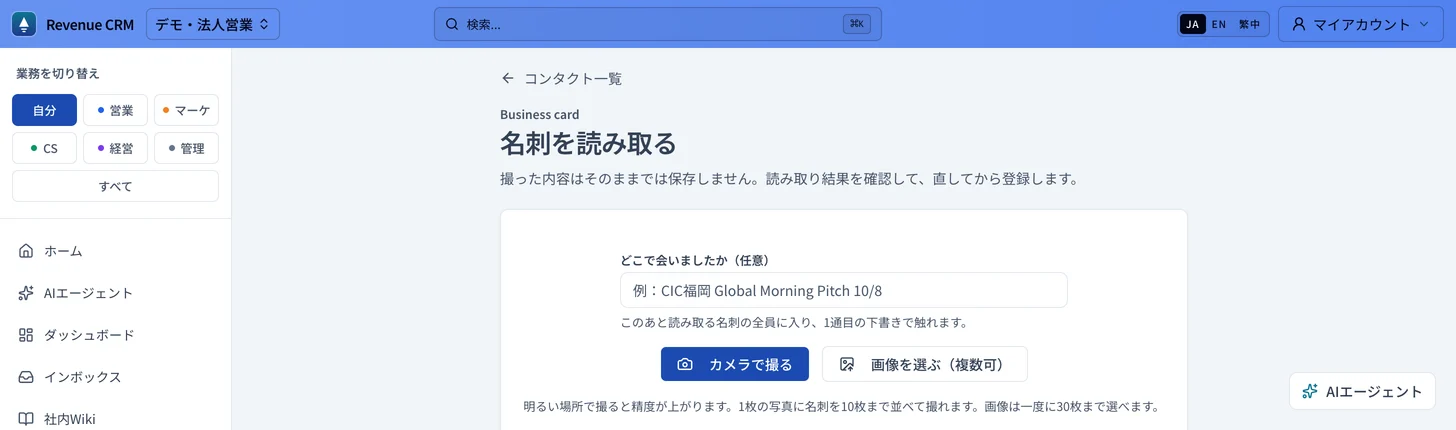 The card scan screen. It decides whether someone already exists by the email address it reads from the card.
In Revenue CRM, one contact can hold several addresses and companies
Add email and Add company on the contact page let a single record carry the extras. Anything that arrives from an added address lands on that person.
Under the email address on the contact page, click Add email, type into the Another email address field and press Enter. Under the company, Add company lets you pick a company already in your CRM. The originals stay as primary. Each added row has an up arrow (Make primary) and an X (Remove). On a computer, they appear when you hover over the row.
Once added, the address and company count as the same person here:
- Form submissions, email arriving in the Inbox, Gmail and Outlook sync, and meeting tool imports
- Card scanning, which now shows the existing contact for a card with that address instead of creating someone new
- The Contacts card on the added company’s page, which lists this person
If someone is already split, the order matters. You can’t add an address that is another contact’s primary. You’ll see “This address belongs to another contact.” There is no merge, so keep the record with more history and work through this:
- Note the other record’s address. If it has added addresses, note those too and remove them with the X
- Search the deal list by company name and open each deal to find the ones on the other record. Move them across with Related records on the deal’s edit page. The name appears twice in the picker, so after saving, open the contact from the deal to check. Add their Contact roles again too
- Open the other record, choose Edit, clear Email (primary) and save. Clearing it in the Email column of the contact list works too, but that list only shows the newest 300 contacts
- Add that address and company to the record you kept
- Move the other record to the trash with the trash icon on its page
Don’t skip step 3. If the address stays on the trashed record, a form submission from it brings that record back into your list.
Five things to know before you start:
- Activities, emails, notes and files stay on the trashed record, and you’d have to restore it to see them. Unsubscribes don’t carry over either, so check the record you keep
- Search doesn’t match added addresses, and bulk email goes to the primary address only
- CSV import doesn’t check added addresses, so a row with one creates a separate contact
- Added companies have no job title field, so making one primary leaves the title blank
- Export data leaves out added addresses and companies. The X removes a row immediately, with no confirmation
Your first step
This week, think of three people who wear more than one hat and type each family name into the search at the top of the screen. If the same person comes up twice, fix them first. Check the company and address, because two people can share a surname.
You don’t need to audit the whole database. The splits that hurt are the few people more than one rep deals with, and three names will tell you whether to keep going.
Try the demo with just an email address. Choose B2B sales, open a contact, and you’ll see Add email and Add company. The demo is shared, so look at where they are without adding anything. Try the demo
The demo opens with just an email address.