"I'll send it by Friday": the promises made in sales meetings that nobody tracks

Tuesday’s meeting went well. Your rep said the quote would go out by Friday. The customer’s manager said they’d come back with requirements next week.
A week later, the call opens with “So, about that quote…” and “Sorry, we haven’t got to the requirements either.” Nobody was careless. Nobody was watching the promises, that’s all.
What you lose is the next meeting and a little trust
People remember what was discussed. They don’t remember who owes what by when, and you pay for the gap in the next call.
Say each meeting produces three commitments and your team runs 20 meetings a month. That’s 60 promises a month. Drop one in ten and you’ve missed six, all sitting in individual notebooks and inboxes.
The customer’s side is even harder to see. When they owe you something, you just wait, and nothing on any screen tells you it has stalled.
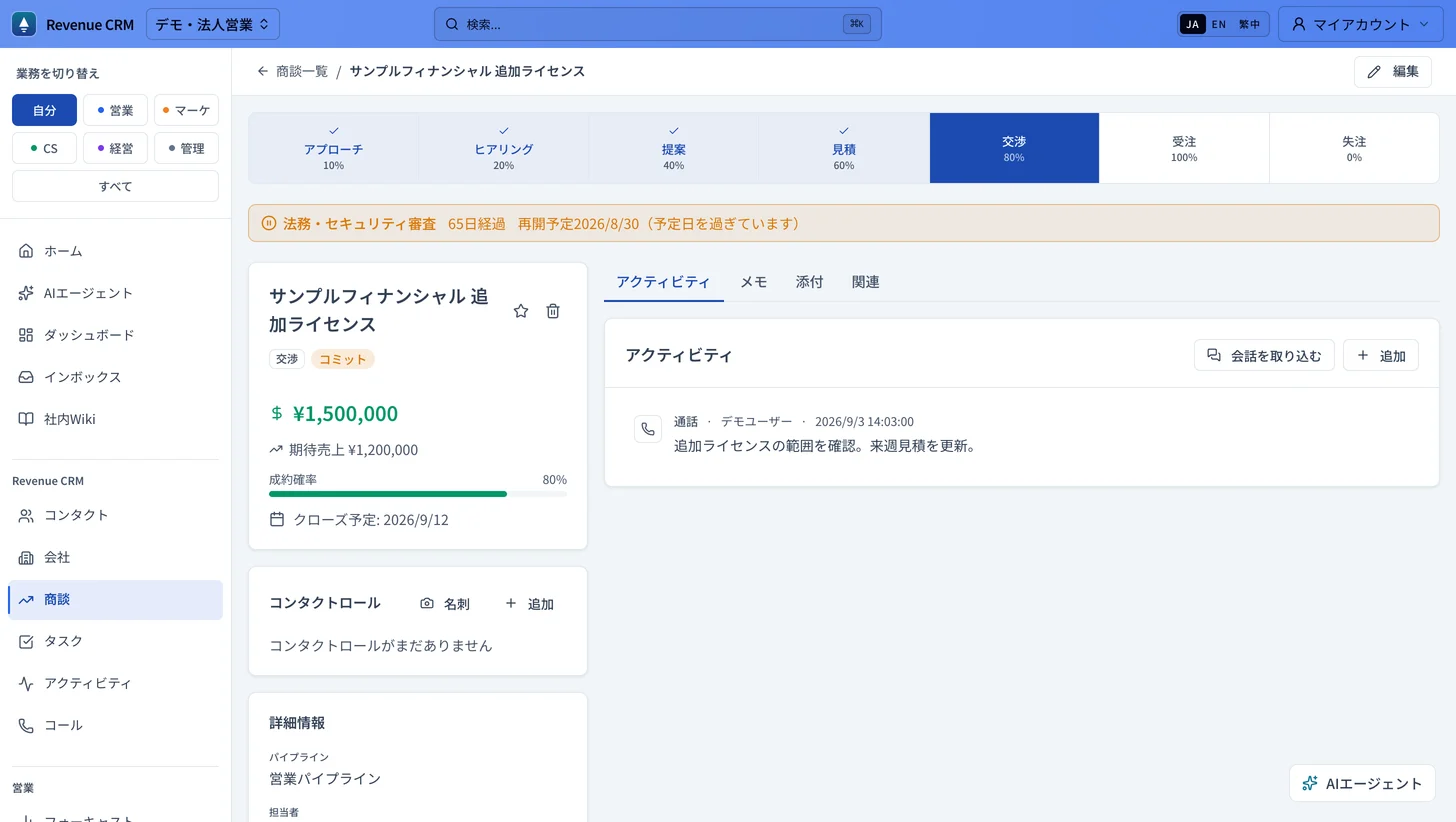 The Activity tab on a deal, shown in Japanese with a call as the example. Agreements land in the same place, with a Japanese subject line.
In Revenue CRM, promises become tasks on the deal page
The After-meeting record on the deal page captures the agreements and the commitments in one step. Each commitment needs an owner and a due date, so nothing is left without a name on it.
At the top of the deal page, find the Next action & due date card and open Record meetings, proposals and holds. Leave Event to record on After-meeting record, then:
- Write what was decided under Agreements to share with the customer
- Click Add commitment, choose Our commitment or Customer commitment, and enter what, when and who. For a customer commitment, the owner is the person on your team who checks that it arrived
- In the bottom row, set what happens next, the date and the owner, then click Record & schedule next
Four things happen at once:
- The current next action is completed and replaced with the new one
- Each commitment becomes a task for its owner, and shows under Do now on the home screen once it’s due. Managers can see the team’s tasks, with owners, under Tasks in the sidebar
- It’s listed under Open commitments, lower in the same section. Close yours with Done and the customer’s with Received
- Draft a thank-you and agreement email is ticked by default, so a draft appears in Drafts waiting to send with the agreements and commitments in the body. Nothing reaches the customer until someone sends it
Reminders are off by default. An owner or admin opens Sales playbooks in Settings, ticks Notify on task creation and before / on / after the due date, and clicks Save just above it. They run every morning at 10:00 Japan time: owners get an email, plus Slack if you’ve connected it, and overdue items also go to the manager address under Notifications. While a deal is on hold, reminders for customer commitments pause.
What to know before you rely on it:
- Send the draft the same day. If the deal changes stage, the contact emails you, or a future meeting lands for that contact before you send, the draft disappears with no notice
- Read every draft. The template is in Japanese whatever language your screen is in, so rewrite it or use Translate. The subject carries your internal deal name, the opening always says “today”, your internal next action goes in as written, and the next meeting time comes out in a raw format that may not be in your time zone. There’s no signature until you click Add signature
- The draft goes only to the contact under Related records on the deal. With no email address, there’s no draft. If nobody has decided whether sales outreach to that contact is allowed, the send is blocked, so check the contact first
- If that person already has an unsent draft, the record won’t save. Deal with that draft first
- Agreements can’t be edited on screen once recorded. A deal on hold needs Resume from hold before you can record a meeting
- Marking a deal won or lost, or moving it to the trash, closes any open commitments. If something has to survive the signature, check it first
- The next action can’t be ticked off on the home screen. It just bounces back. Set its successor on the deal page, which completes it
Your first step
Pick one meeting this week, and before you leave the room, enter two commitments: one of yours and one of theirs. The agreements and next action are required too, so one line each is fine. If you don’t want a draft yet, untick the box.
No need to roll this out to the whole team. Just see whether the first five minutes of the next call change.
Try the demo with just an email address. Choose B2B sales, open a deal that isn’t won or lost, and find the Next action & due date card. The demo is shared, so look without recording anything. Try the demo
The demo opens with just an email address.